
Configuring S-Filer Portal for OpenID Connect
S-Filer Portal can be configured for OpenID Connect either in the administrative console or with the configuration CLI. Both methods follow the same four steps. They must be performed after OpenID Connect has been configured in your desired Identity Provider as some information from that configuration is required in these steps.
Associating the OpenID Connect identity with an S-Filer user
When a user logs in with OpenID Connect, S-Filer Portal associates the identity returned by the identity provider with an S-Filer user as follows:
- S-Filer Portal validates the
id_tokenreturned by the identity provider: its issuer, its audience (which must be the Client identifier), its RS256 signature and its nonce. - S-Filer Portal then calls the UserInfo endpoint of the identity provider.
- The S-Filer user name is the value of the
emailclaim returned by UserInfo. Thesub(subject) claim is not used to associate the identity with an S-Filer user. - The full name of the user comes from the
nameclaim (the email address is used when this claim is absent) and the language comes from thelocaleclaim.
Azure AD B2C is a special case: this identity provider does not return an access token, so UserInfo cannot be called. The email address is then read from the emails claim of the id_token, and the first value is used.
The user name obtained must comply with the S-Filer Portal user name format. Otherwise, the login is refused.
If no S-Filer user with this user name exists in the authentication domain, the user goes through auto enrollment: S-Filer Portal offers to link the authentication to an existing S-Filer account whose email address matches, or to create a new account. This is why Auto Enrollment must be enabled in step 2 of the configuration.
Important
- The identity provider must be configured to return the
emailclaim (emailscope). Without it, the user cannot be associated with an S-Filer user. - Existing S-Filer accounts are recognized directly only if their user name is the email address of the user. Otherwise, the user must link their authentication to the existing account, or enroll a new account.
- Since the email address identifies the user and is used to find the existing accounts to link, S-Filer Portal trusts the identity provider for it. Only use an identity provider that returns the
emailclaim for verified email addresses, and that does not let users choose or change their address freely. With a multi-tenant identity provider, or one that allows self sign-up (for example Azure AD B2C), restrict it to the trusted tenants or email domains. Otherwise, a user could claim the email address of an existing S-Filer user and gain access to that account.
Configuring with the administrative console
The following steps take place in the S-Filer Portal administrative console.
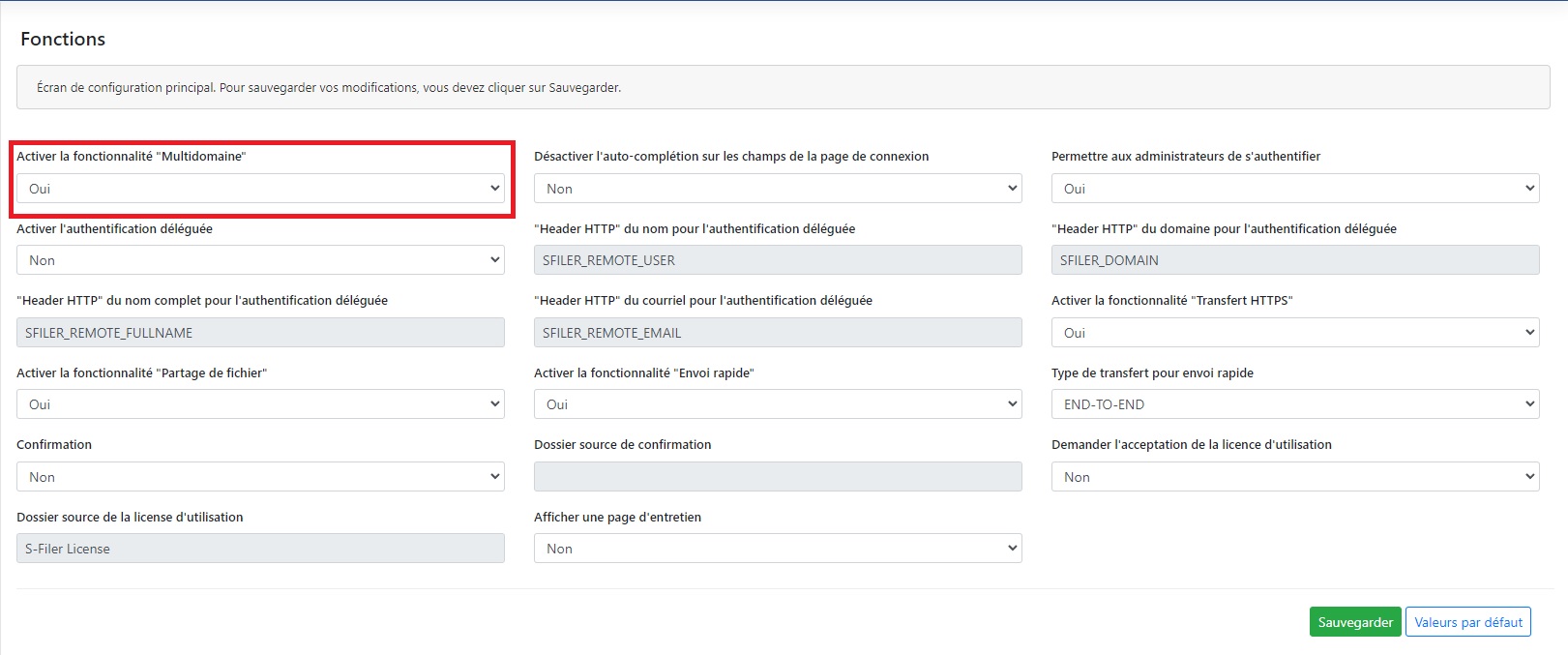
Step 1 - Activate the Multidomain feature for the Web client(s)
- Log into the Administrative Console using your login details
- Open the section of the web GUI component for which you want to offer OpenID Connect authentication
- Open the Configuration section
- Click on Features
- Activate the Enable "Multi domain" feature
Step 2 - Create and set up the authentication method
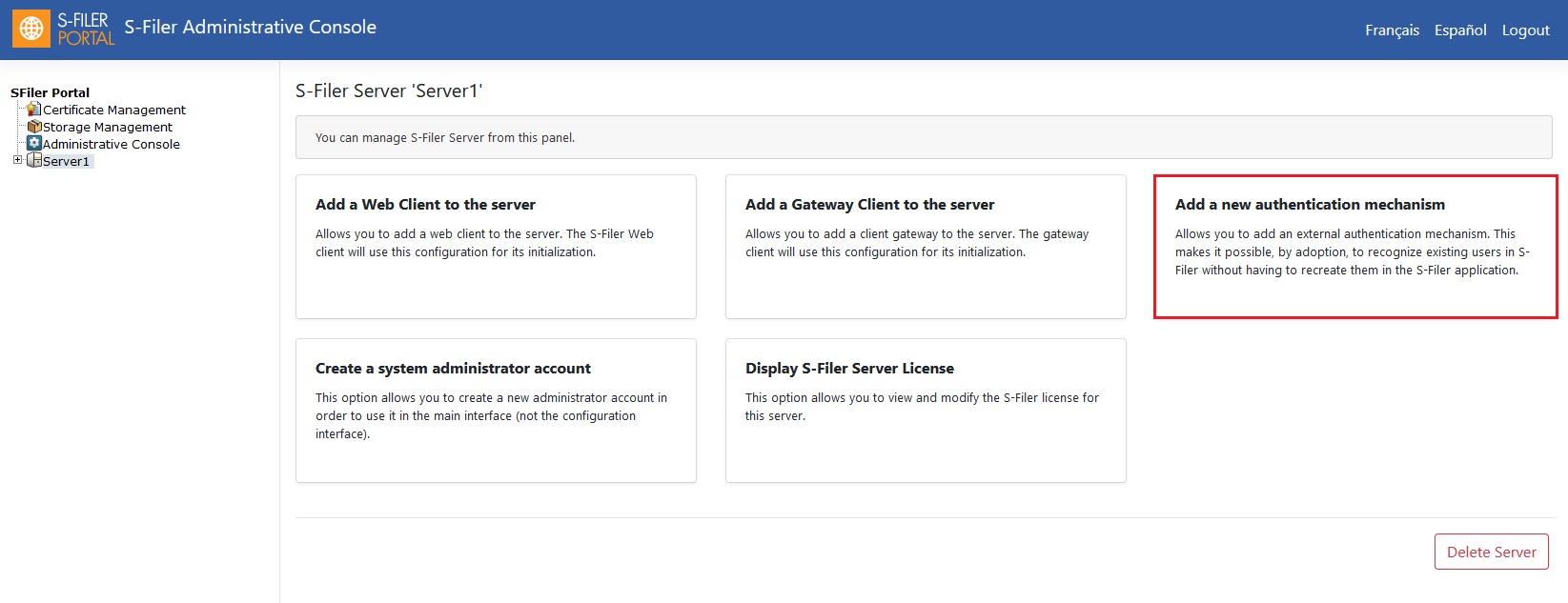
- Use the link presented by the server name in the left menu to create a new authentication mechanism.
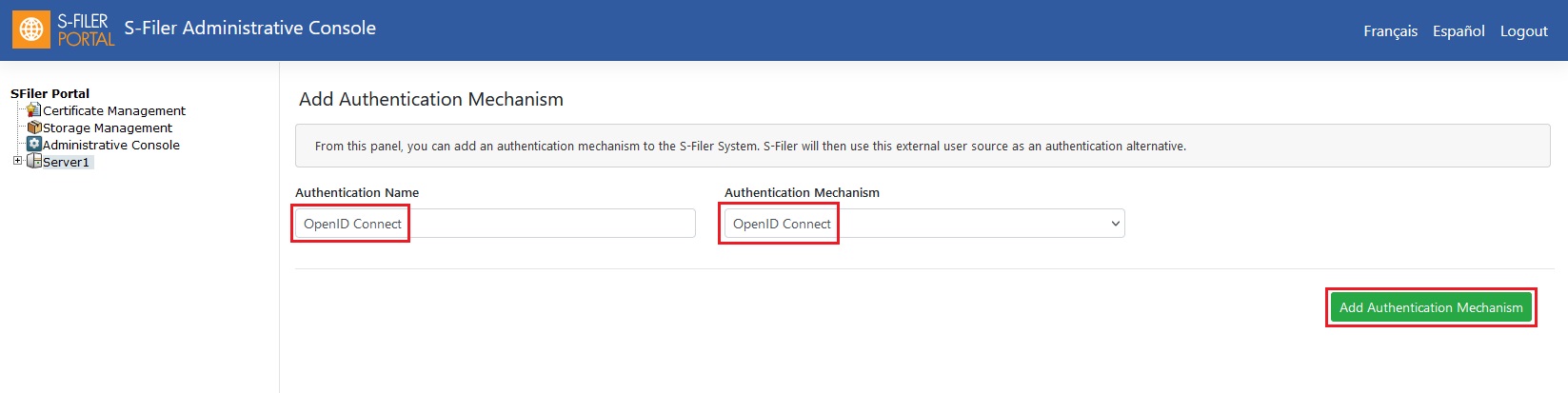
- Enter a name
- Select the OpenID Connect option as the Authentication Mechanism
- Click on Add Authentication Mechanism
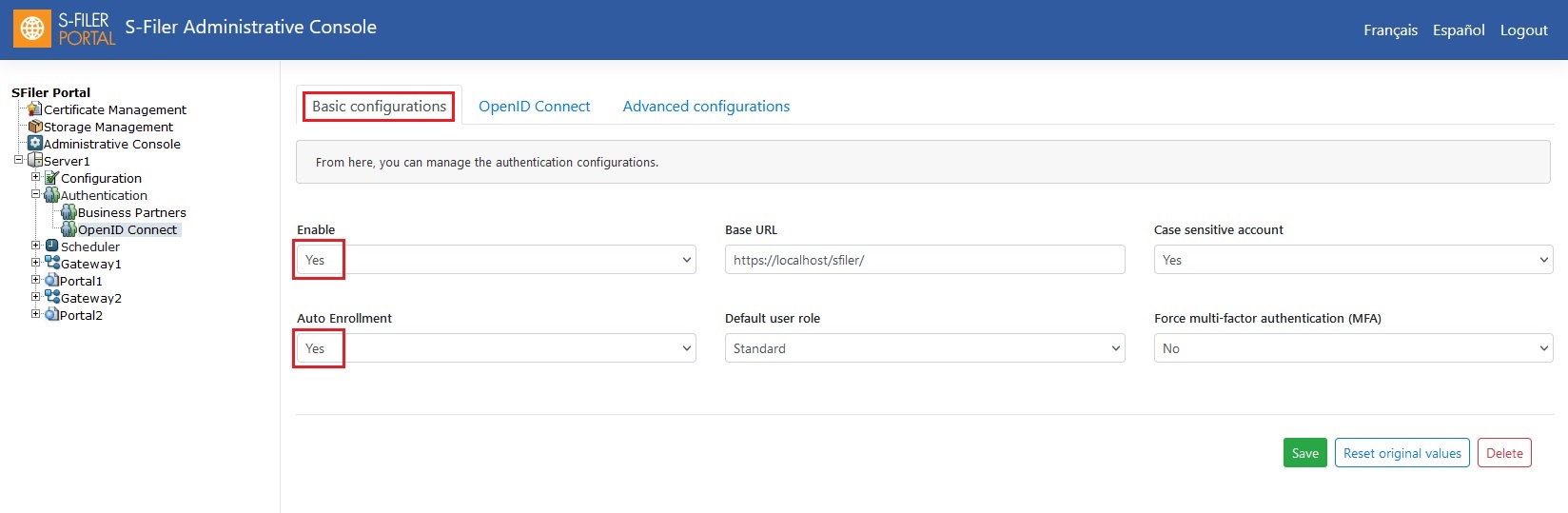
- In the left-hand menu, open the section of the S-Filer server
- Open the Authentication menu
- Select the authentication mechanism just added
- In the Basic configurations tab, you need to Enable the authentication mechanism and the Auto Enrollment
- This is required because it is the only way to adopt users in S-Filer Portal since the automatic adoption is not supported for OpenID Connect
Step 3 - OpenID Connect configuration
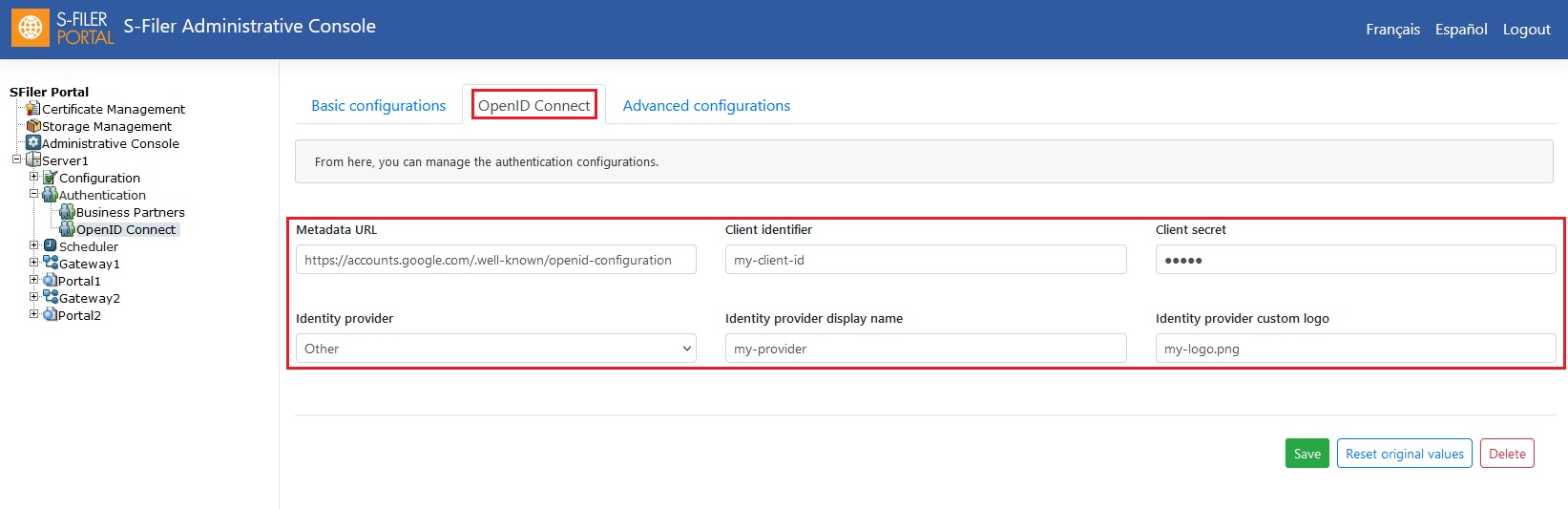
- Go to the OpenID Connect tab
- Enter the values obtained during the identity provider configuration in the Metadata URL, Client identifier and Client secret parameters
- Select your identity provider from the drop-down menu of the Identity provider parameter
- If it is not listed, select Other
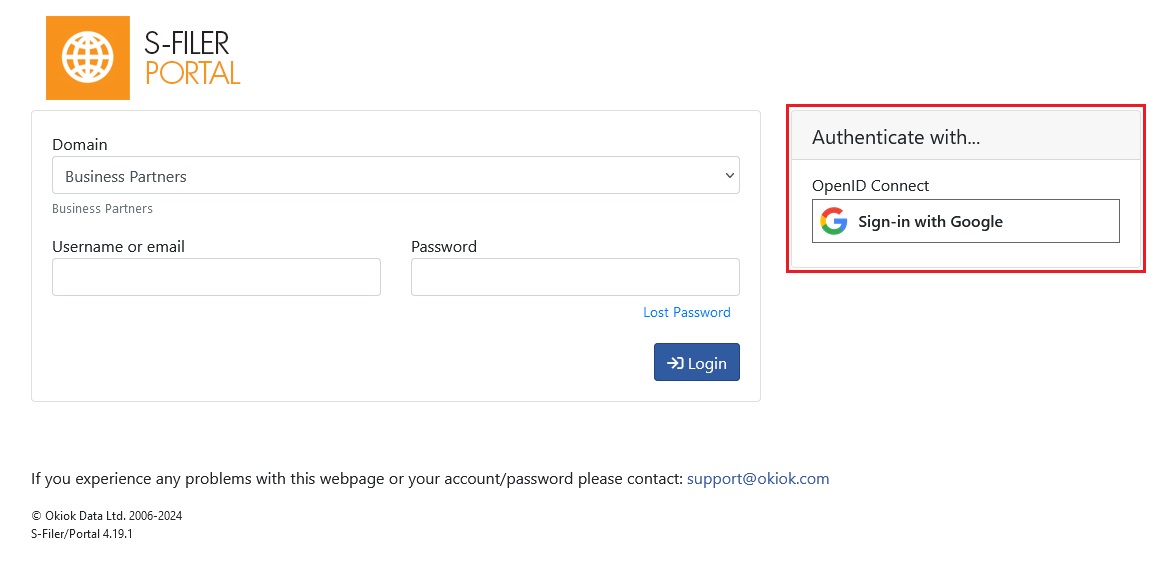
- This parameter determines the name and the logo of the login button representing this authentication mechanism in the authentication page of the S-Filer Portal Web Interface
- All identity providers known to S-Filer Portal have a name and a logo that cannot be modified
INFO
In the case of an unknown provider (the Other choice), the Identity provider display name and Identity provider custom logo parameters are used to customize the login button. The Identity provider display name will appear on the login button after the text Sign-in with. The Identity provider Custom Logo is the name of the file containing the logo to be displayed on the login button. This file must be placed in the client theme at this precise location on the machine where the S-Filer Portal gateway has been installed:
/gateway_installation_path/gateway/webapps/sfiler-gui-ajax/themes/your_theme/images/authentication/5
If the Identity provider custom logo parameter is not defined, or if the defined file is not found in the specified location on the file system, a generic logo will be used.
See also
Refer to the authentication mechanism configuration documentation for OpenID Connect for a complete description of all the configuration fields for this authentication mechanism.
Step 4 - Apply the changes
The changes are taken into account automatically, without a restart:
- The S-Filer Portal server reloads its configuration every 5 minutes, including the list of authentication domains and their parameters.
- The Web interface reloads its own configuration every 5 minutes, about 30 seconds after the server: the list of federated domains, the identity provider, the display name, the logo and the Multidomain feature.
A new authentication domain, or a change to its configuration, is therefore taken into account in about 5 to 6 minutes. To apply the changes immediately, restart the S-Filer Portal server and the Web interface. The gateway does not need to be restarted.
Once the changes are taken into account, a new button becomes available on the authentication page.
Configuring with the configuration CLI
The following steps perform the same configuration with the sfiler-config-cli configuration CLI.
Step 1 - Activate the Multidomain feature for the Web client(s)
Use the set-config command to set the cfg.java.gui.sfiler.feature.multi.domain key to true on the web GUI component for which you want to offer OpenID Connect authentication. The list-components command lists the names of the components.
./sfiler-config-cli.sh -l my-user -p my-password -cf "conf/sfiler.conf" set-config -n "My web GUI" -k "cfg.java.gui.sfiler.feature.multi.domain" -v "true".\sfiler-config-cli.bat -l my-user -p my-password -cf "conf\sfiler.conf" set-config -n "My web GUI" -k "cfg.java.gui.sfiler.feature.multi.domain" -v "true"If several Web interfaces must offer OpenID Connect authentication, repeat the command for each of them.
Step 2 - Create and set up the authentication method
Use the add-auth-domain command with the type 5 (OpenID Connect) to create the authentication domain, then the set-auth-config command to enable the domain and the auto enrollment:
cfg.authentication.external.active:truecfg.authentication.external.autoenroll:true- Its default value is already
true, but set it explicitly: auto enrollment is the only way to adopt users in S-Filer Portal since the automatic adoption is not supported for OpenID Connect
- Its default value is already
cfg.authentication.external.default.enrollment.role: if needed, the numeric identifier of the role given to the enrolled users (see On automatic account creation)
./sfiler-config-cli.sh -l my-user -p my-password -cf "conf/sfiler.conf" add-auth-domain -n "My OpenID Connect domain" -t 5
./sfiler-config-cli.sh -l my-user -p my-password -cf "conf/sfiler.conf" set-auth-config -n "My OpenID Connect domain" -k "cfg.authentication.external.active" -v "true"
./sfiler-config-cli.sh -l my-user -p my-password -cf "conf/sfiler.conf" set-auth-config -n "My OpenID Connect domain" -k "cfg.authentication.external.autoenroll" -v "true"
./sfiler-config-cli.sh -l my-user -p my-password -cf "conf/sfiler.conf" set-auth-config -n "My OpenID Connect domain" -k "cfg.authentication.external.default.enrollment.role" -v "0".\sfiler-config-cli.bat -l my-user -p my-password -cf "conf\sfiler.conf" add-auth-domain -n "My OpenID Connect domain" -t 5
.\sfiler-config-cli.bat -l my-user -p my-password -cf "conf\sfiler.conf" set-auth-config -n "My OpenID Connect domain" -k "cfg.authentication.external.active" -v "true"
.\sfiler-config-cli.bat -l my-user -p my-password -cf "conf\sfiler.conf" set-auth-config -n "My OpenID Connect domain" -k "cfg.authentication.external.autoenroll" -v "true"
.\sfiler-config-cli.bat -l my-user -p my-password -cf "conf\sfiler.conf" set-auth-config -n "My OpenID Connect domain" -k "cfg.authentication.external.default.enrollment.role" -v "0"Step 3 - OpenID Connect configuration
Use the set-auth-config command to set the parameters of the mechanism with the values obtained during the identity provider configuration:
cfg.authentication.openid.connect.metadata.url: the metadata URLcfg.authentication.openid.connect.client.id: the client identifiercfg.authentication.openid.connect.client.secret: the client secretcfg.authentication.openid.connect.identity.provider: the identity providercfg.authentication.openid.connect.identity.provider.other.display.name: the name displayed on the login button, only when the identity provider isothercfg.authentication.openid.connect.identity.provider.other.custom.logo: the name of the file containing the logo displayed on the login button, only when the identity provider isother(see the location of this file in step 3 of the administrative console)
The cfg.authentication.openid.connect.identity.provider parameter determines the login button of the authentication page. It accepts the following values:
| Value | Login button |
|---|---|
microsoft | Microsoft, fixed logo |
google | Google, fixed logo |
salesforce | Salesforce, fixed logo |
other | Name taken from cfg.authentication.openid.connect.identity.provider.other.display.name, logo taken from cfg.authentication.openid.connect.identity.provider.other.custom.logo (generic logo otherwise) |
The value must be written in lowercase, exactly as in the table: Google, for example, is not accepted. This parameter is mandatory for an OpenID Connect domain since its default value is empty. The administrative console requires a choice from a list, but the set-auth-config command does not validate the value.
Warning
If the cfg.authentication.openid.connect.identity.provider parameter is empty or has an invalid value, the login page of the Web interface is no longer displayed at all, not only the OpenID Connect button.
Warning
The client secret is a password parameter: the set-auth-config command encrypts it automatically before storing it in the database, as the administrative console does. Provide the value in clear text with the -v option. Do not provide a value that is already encrypted, since it would be encrypted a second time.
The secret passed on the command line may remain in the shell history. Clear it from the history once the configuration is done.
./sfiler-config-cli.sh -l my-user -p my-password -cf "conf/sfiler.conf" set-auth-config -n "My OpenID Connect domain" -k "cfg.authentication.openid.connect.metadata.url" -v "https://accounts.google.com/.well-known/openid-configuration"
./sfiler-config-cli.sh -l my-user -p my-password -cf "conf/sfiler.conf" set-auth-config -n "My OpenID Connect domain" -k "cfg.authentication.openid.connect.client.id" -v "my-client-id"
./sfiler-config-cli.sh -l my-user -p my-password -cf "conf/sfiler.conf" set-auth-config -n "My OpenID Connect domain" -k "cfg.authentication.openid.connect.client.secret" -v "my-client-secret"
./sfiler-config-cli.sh -l my-user -p my-password -cf "conf/sfiler.conf" set-auth-config -n "My OpenID Connect domain" -k "cfg.authentication.openid.connect.identity.provider" -v "google".\sfiler-config-cli.bat -l my-user -p my-password -cf "conf\sfiler.conf" set-auth-config -n "My OpenID Connect domain" -k "cfg.authentication.openid.connect.metadata.url" -v "https://accounts.google.com/.well-known/openid-configuration"
.\sfiler-config-cli.bat -l my-user -p my-password -cf "conf\sfiler.conf" set-auth-config -n "My OpenID Connect domain" -k "cfg.authentication.openid.connect.client.id" -v "my-client-id"
.\sfiler-config-cli.bat -l my-user -p my-password -cf "conf\sfiler.conf" set-auth-config -n "My OpenID Connect domain" -k "cfg.authentication.openid.connect.client.secret" -v "my-client-secret"
.\sfiler-config-cli.bat -l my-user -p my-password -cf "conf\sfiler.conf" set-auth-config -n "My OpenID Connect domain" -k "cfg.authentication.openid.connect.identity.provider" -v "google"See Also
- OpenID Connect Authentication lists all the configuration keys of an OpenID Connect domain and their default values.
- GUI describes the
cfg.java.gui.sfiler.feature.multi.domainkey.
Step 4 - Apply the changes
As with the administrative console, the changes are taken into account automatically within about 5 minutes. To apply them immediately, restart the S-Filer Portal server and the Web interface. The gateway does not need to be restarted. See step 4 of the administrative console for details.