
Setting the EULA and acknowledgment pages
This page explains how to set the end user license agreement page as well as the acknowledgment page.
See Also
This page describes how to set the global settings for the EULA and Acknowledgment pages. To personalize the pages for specific populations, see How to configure multiple license or acknowledgment pages for different populations.
The End user license agreement (EULA) page is presented to each individual user only once, usually after the first password change, and must be accepted before proceeding further in the application. Once the user has read the license agreement and if he approves to abide by its rules, he only needs to press the yes button at the bottom of the EULA text and he will not be presented this page in his future usage of S-Filer Portal.
The Acknowledgment page is presented to the user after each login as an intermediary page. This page may contain information that the administration deems important for the user to know before proceeding further in the application. The user only needs to press the yes button on the bottom right if he has acknowledged the page's content and wishes to go further in the S-Filer Portal application.
Instructions
Enabling the pages
First you need to access the web component basic configuration. Click on your web component in the left hand tree, and then click on Configuration followed by Features. In this panel, set Ask for Acknowledgment and/or Ask for License Agreement to Yes to activate the acknowledgment page and the license agreement page.
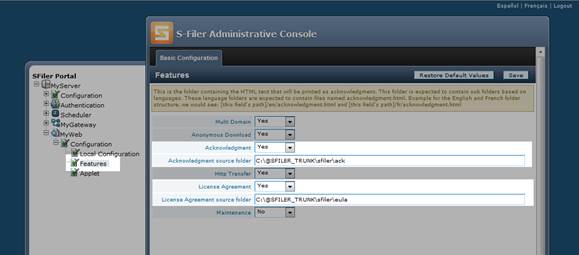
Where S-Filer Portal looks for the HTML files
Each page is an HTML file per language: license.html for the license agreement and acknowledgment.html for the acknowledgment. For the language of the user, S-Filer Portal looks for the file in the following order and uses the first one it finds:
- In the theme used by the user, under
.../sfiler-gateway/gateway/webapps/sfiler-gui-ajax/themes/<theme>/message/<language>/. - Otherwise, in the folder set in License Agreement source folder or Acknowledgment source folder, under
<folder>/<language>/.
Warning
A file present in the theme silently overrides the file of the configured folder: as long as the theme contains a license.html or acknowledgment.html file for a language, the configured folder is not read for that language.
Recommended: storing the pages in your theme
We recommend storing the pages in your own theme, next to your other customizations. Create your theme as described in Creating your own theme (never use the default sfiler theme, which is replaced at each update), then add the files under the message folder of the theme, one folder per language. For example, for a theme named mycompany:
- themes
  - mycompany
    - message
      - en
        - license.html
        - acknowledgment.html
      - fr
        - license.html
        - acknowledgment.html
      - es
        - license.html
        - acknowledgment.html
      - de
        - license.html
        - acknowledgment.html
      - it
        - license.html
        - acknowledgment.html
Storing the pages in themes also lets you present different pages to different user populations, see How to configure multiple license or acknowledgment pages for different populations.
Alternative: using the source folders
The Acknowledgment source folder and License Agreement source folder fields give the location of a folder used when the theme does not contain the file. This folder needs to be on the machine that will host the gateway/web interface combination. You also need to provide an absolute path.
Under these folders, you need to build a sub structure which comprises one folder per language:
- en (English)
- fr (French)
- es (Spanish)
- de (German)
- it (Italian)
Each of these folders must contain a file called acknowledgment.html or license.html depending on which structure you are in.
- eula
  - en
    - license.html
  - fr
    - license.html
  - es
    - license.html
  - de
    - license.html
  - it
    - license.html
- ack
  - en
    - acknowledgment.html
  - fr
    - acknowledgment.html
  - es
    - acknowledgment.html
  - de
    - acknowledgment.html
  - it
    - acknowledgment.html
Content of the HTML files
In the creation of your html pages, it is necessary to put your HTML and CSS in the above html documents. The only way to support images is to host the images on another web server and refer to them in your html pages with an absolute path. You can do the same thing for javascripts and css documents.
Important
The content of these HTML pages is displayed as is to every user, and any referenced JavaScript or CSS is executed in the user's browser during the login sequence. Only insert content that you trust, and only reference images, scripts and style sheets hosted on a web server that you control. A file coming from an untrusted or compromised host would run with the same privileges as the S-Filer Portal web interface for every user who logs in.