
How to edit a notification theme with a coding agent
Rewording a notification in five languages, or moving a logo in the layout shared by every email, is tedious work that a coding agent such as Claude Code, Cursor or GitHub Copilot does well. What made it risky until now was the check: you had to import the theme and send real emails to see the result. Since 4.21.0, the preview-notification-theme command renders the templates on the workstation, without an S-Filer server, so the agent can check its own work before you look at it.
The method is simple. You export the theme with the configuration CLI, the agent edits the files and previews them, then you review the result and import it yourself. The agent never touches the database.
This page assumes you know HTML and CSS. Everything else (the CLI, MVEL, the quirks of email clients) is explained where you need it.
Prerequisites
- The configuration CLI (
sfiler-config-cli) of version 4.21.0 or later, on a workstation that can reach the database for the export and the import. - A coding agent installed on this workstation.
Before you start
Running a command of the configuration CLI
The configuration CLI has no window: you run it in a terminal, PowerShell or the Command Prompt on Windows, a shell on Linux. Open one and go to the folder where the CLI is installed, for example cd C:\sfiler-config-cli. The commands of this page start with .\sfiler-config-cli.bat on Windows and ./sfiler-config-cli.sh on Linux, which run the CLI of the current folder.
The options are read in two groups. Those written before the name of the command tell the CLI how to reach the database, and only the export and the import need them:
-l: the database account;-cf: the configuration file of the CLI, which holds the address of the database (conf/sfiler.confin the examples);-p: the password of the account.
Leave -p out, as the examples do. The CLI then asks for the password, which is not displayed and does not end up in the history of the terminal, where anyone using the workstation after you could read it.
The options written after the name of the command (-th, -od...) belong to that command. The preview command never uses the database, so it only takes options of this second kind.
What a coding agent is
A coding agent is an AI assistant that reads and edits the files of a folder, and can run commands in it. You describe the result you want, it changes the files, you review its changes.
It reads its instructions from a file at the root of the folder it is opened in. Open it in the working folder of the theme (see Step 1), otherwise it never sees the rules of Step 3 and works blind.
The agent asks for your permission before running a command. Allow preview-notification-theme and nothing else: it is the only command that needs no credentials and changes nothing outside the working folder.
HTML in an email is not HTML in a web page
Email clients support only part of HTML and CSS, and Outlook supports the least, because it renders emails with the engine of Word rather than a browser. Three consequences follow for the templates.
The layout is built with tables (<table>), and each element carries its styles in its style attribute. Flexbox, grid, external style sheets and JavaScript do not work, and <style> blocks are not reliable. The base theme is written this way for that reason, and it is the model to follow.
The images are not attached to the email. The email client downloads them when the recipient opens the message, so an image needs an absolute, public address such as https://www.example.com/logo.png. A file on your workstation or on an internal server shows as a broken image for everyone outside.
Finally, a page that looks right in a browser can still break in Outlook. The preview of the agent catches most errors, but a person still opens the result in the email client of the recipients before the import (see Step 6).
Step 1: Export the theme
Find the name of the theme as it is displayed in Notification Themes, in the administrator mode of the web interface (for example notification). Then export it with export-notification-theme: -th is the name of the theme, and -od the folder where the file is written.
Warning
The base theme provided with the product (Base theme 4.21) cannot be imported, so the import of Step 6 would refuse your changes. To customize it, first create a clone with this base theme as Source theme (see Add a notification theme), then export and edit the clone.
./sfiler-config-cli.sh -l my-user -cf "conf/sfiler.conf" export-notification-theme -th "notification" -od "/tmp/export".\sfiler-config-cli.bat -l my-user -cf "conf\sfiler.conf" export-notification-theme -th "notification" -od "C:\temp\export"The command writes a zip file named export_notification_theme_<id>_<date>.zip. Do not touch it. It is the state of the theme before the changes, and the only way back if the result does not suit you.
Unzip a copy in a working folder, for example /tmp/theme or C:\temp\theme.
Important
Run the export and the import yourself. Both need the credentials of the database, and an agent that has them can change far more than a theme. Do not give them to the agent, and do not write them in the files of the working folder, which it reads.
Step 2: Understand the structure of the theme
The working folder holds a readme.txt file, which gives the name and the id of the theme, and a folder named after the theme id, a number given by S-Filer (123 in the examples). Inside, there is one folder per language enabled in the Administrative Console (en, fr, de, es, it):
working-folder/
  readme.txt
  123/
    en/
      framework.html
      file_available_comm_body.html
      file_available_comm_subject.html
      user_share_body.html
      user_share_subject.html
      ...
    fr/
      ...
One pair of files per notification
Each notification has two files named after its type: <type>_body.html for the body of the email, and <type>_subject.html for its subject. These are the types you will meet most often:
| Type | Email sent when |
|---|---|
user_share | A user is invited to a community (share space). |
file_available_comm | A file is added to a community. |
file_available | A file is sent to the inbox of a user. |
file_available_anony | A file is sent to an email address. |
reception_acknowledge | A file is downloaded. |
lost_password | A user resets the password. |
user_created | An account is created. |
consolidated_email | Several notifications of a user are grouped in one email (see below). |
Variables by notification describes all of them.
Two kinds of files carry the .html extension without being HTML. A *_subject.html file is the subject line of the email: one line of plain text, where a tag would show as is. And sms_access_code_body.html is a text message sent to a phone, so it stays plain text and very short.
The shared layout: framework.html
framework.html is the layout of every notification of a language, header, footer and styles, much like the master page of a web site. Its @{mailContent} placeholder receives the body of the notification. A change to this file therefore reaches every email of the language at once, which is convenient for a logo and dangerous for a typo.
Variables and conditions (MVEL)
S-Filer fills the templates with MVEL, a template language that works like the placeholders of a web template engine. @{variable} inserts a value: <p>Hello @{userfullname},</p> becomes <p>Hello Jane Recipient,</p>. The tags @if{...}, @else{} and @end{} show content only under a condition, and @foreach{...} repeats it for each element of a list:
@if{messagetorecipients != empty}
  <p>Message from the sender: @{messagetorecipients}</p>
@end{}
Each notification provides its own variables, and you cannot add new ones. Be careful with names: a variable with a typing error raises no error, it simply displays as empty text, and the email goes out with a hole in it. This is the main thing the preview of the agent catches. One variable is new in 4.21.0 and worth knowing: @{solutionName} holds the name of the solution set on the server, and the base theme now uses it instead of a name written in the templates.
The consolidated email (consolidated_email) is the exception. It groups several notifications of a recipient in a single email, so its template reads its content from @{vars...} and repeats a block for each grouped notification. Read its own page before changing it.
See Also
- Notification template variables lists the variables of each notification.
- Consolidated email describes the variables of the consolidated email.
Step 3: Give instructions to the agent
Most coding agents read an instructions file at the root of the folder they work in: AGENTS.md for most of them, CLAUDE.md for Claude Code. It is a Markdown file that the agent reads before each request, and it is where the rules that protect the theme belong. Written once, they apply to every request, so you do not have to repeat them.
Create this file at the root of the working folder, next to the theme folder, from the example below. Adapt the theme id, the languages and the path of the CLI, and keep only the line of your system. Each rule comes with its reason: an agent that knows why a rule exists applies it better to the cases the rule did not foresee.
# S-Filer Portal notification theme

This folder holds a notification theme exported from S-Filer Portal. The theme is in the `123/` folder: one
folder per language (en, fr, de, es, it), with a `<type>_subject.html` and a `<type>_body.html` file per
notification, and `framework.html`, the layout shared by the notifications of the language.

## Documentation

Read these pages before changing a template:

- Notification types and the variables of each one:
  https://www.okiok.com/products-documentation/sfiler-portal/guide/notifications/#variables-by-notification
- Template syntax (MVEL), common variables and dates:
  https://www.okiok.com/products-documentation/sfiler-portal/guide/notifications/
- Consolidated email (`consolidated_email`):
  https://www.okiok.com/products-documentation/sfiler-portal/guide/notifications/consolidated-email.html
- Preview scenarios of the preview command:
  https://www.okiok.com/products-documentation/sfiler-portal/guide/sfiler-cli-config/preview-notification-theme.html#preview-scenarios

## Rules

- Apply each change of text to all the language folders, translated into each language. Each folder holds
  the emails of one language, so a change made in one folder only reaches the recipients of that language.
- Never remove or rename an MVEL variable (`@{...}`) or tag (`@if{}`, `@foreach{}`, `@end{}`). A missing
  variable leaves a hole in the email, and an unbalanced tag breaks the whole template.
- Use only the variables that the documentation lists for the notification type of the template. An unknown
  variable raises no error at sending time: it displays as empty text.
- A `*_subject.html` file is one line of plain text, without HTML tags: it is the subject line of the email.
- `sms_access_code_body.html` is a text message sent to a phone: plain text, very short, without HTML.
- Keep the layout of the base theme: tables and inline styles. Do not add JavaScript, external style sheets,
  flexbox or grid, which Outlook and other email clients do not support.
- Use absolute https:// addresses for images. The email client downloads them when the email is opened.
- Keep the files in UTF-8, or the accented characters break and the import can refuse the file.
- Never write credentials (database, SMTP) in the files of this folder.
- Do not run the export-notification-theme and import-notification-themes commands. They need the database
  credentials, and a person runs them after reviewing your changes.

## Checking a change

After each change, render the notifications you changed, in the languages you changed. Replace
<scenario ids> by the ids of their preview scenarios, separated by commas. To get the list of the ids, run the
command with "-sc list": it stops with an error that lists the available ids.

Windows:

    C:\sfiler-config-cli\sfiler-config-cli.bat preview-notification-theme -tp 123 -od preview -lang en,fr -sc <scenario ids>

Linux:

    /opt/sfiler-config-cli/sfiler-config-cli.sh preview-notification-theme -tp 123 -od preview -lang en,fr -sc <scenario ids>

- Fix every "Warning: unknown variables" and every MVEL error reported by the command.
- Open the HTML files of preview/<language>/ and check the result before saying the change is done.
The checking section relies on preview scenarios. A scenario is a set of sample data for one notification (recipient name, file name, community, message of the sender), and the command renders each template with the data of its scenarios. Their ids usually name the case they show: file_available_comm__with_note is a file added to a community, with a message from the sender. See Preview scenarios.
Example
Running the command with -sc list ends with an error, and that is intended: no scenario is named list, so the command stops and lists the ids that exist. The agent reads this list to find the scenarios of the notifications it changes.
File encoding (UTF-8)
The templates must stay in UTF-8, the encoding that keeps the accented characters of French, German, Spanish and Italian. A file saved in another encoding shows wrong characters in the emails, and the import can refuse it. If you edit a file by hand, check its encoding: most editors display it, at the bottom right of the window in Visual Studio Code.
Step 4: Ask for changes
Describe the result you want in plain language, as you would to a colleague. For example:
- Make the tone of the notification of a file added to a community friendlier, in all languages.
- Add our logo at the top of framework.html, from https://www.example.com/logo.png, 160 pixels wide.
- Harmonize the subjects: each one starts with @{solutionName} and stays under 70 characters.
- Apply to de, es and it the change I made in en/user_share_body.html and fr/user_share_body.html.
The logo of the second request must already be published at that address, since the email client downloads it when the email is opened.
Ask for one change at a time, and review it before the next. A small change is quick to check, while ten changes in one request hide each other.
Step 5: Preview the result
The agent previews its changes itself, with the command written in its instructions. It renders only the scenarios it needs, though, and you will want to see everything. Render all the scenarios of your languages with preview-notification-theme. Add the -iu option with the address of your portal, otherwise the icons that S-Filer serves are missing (see Displaying the icons):
./sfiler-config-cli.sh preview-notification-theme -tp "/tmp/theme/123" -od "/tmp/theme/preview" -lang en,fr -iu https://portal.example.com/.\sfiler-config-cli.bat preview-notification-theme -tp "C:\temp\theme\123" -od "C:\temp\theme\preview" -lang en,fr -iu https://portal.example.com/For each language, the command writes an HTML file per scenario, to open in a web browser, and an .eml file in the eml subfolder. An .eml file is a saved email: a double click opens it in Outlook, which is as close as you can get to what the recipients will see.
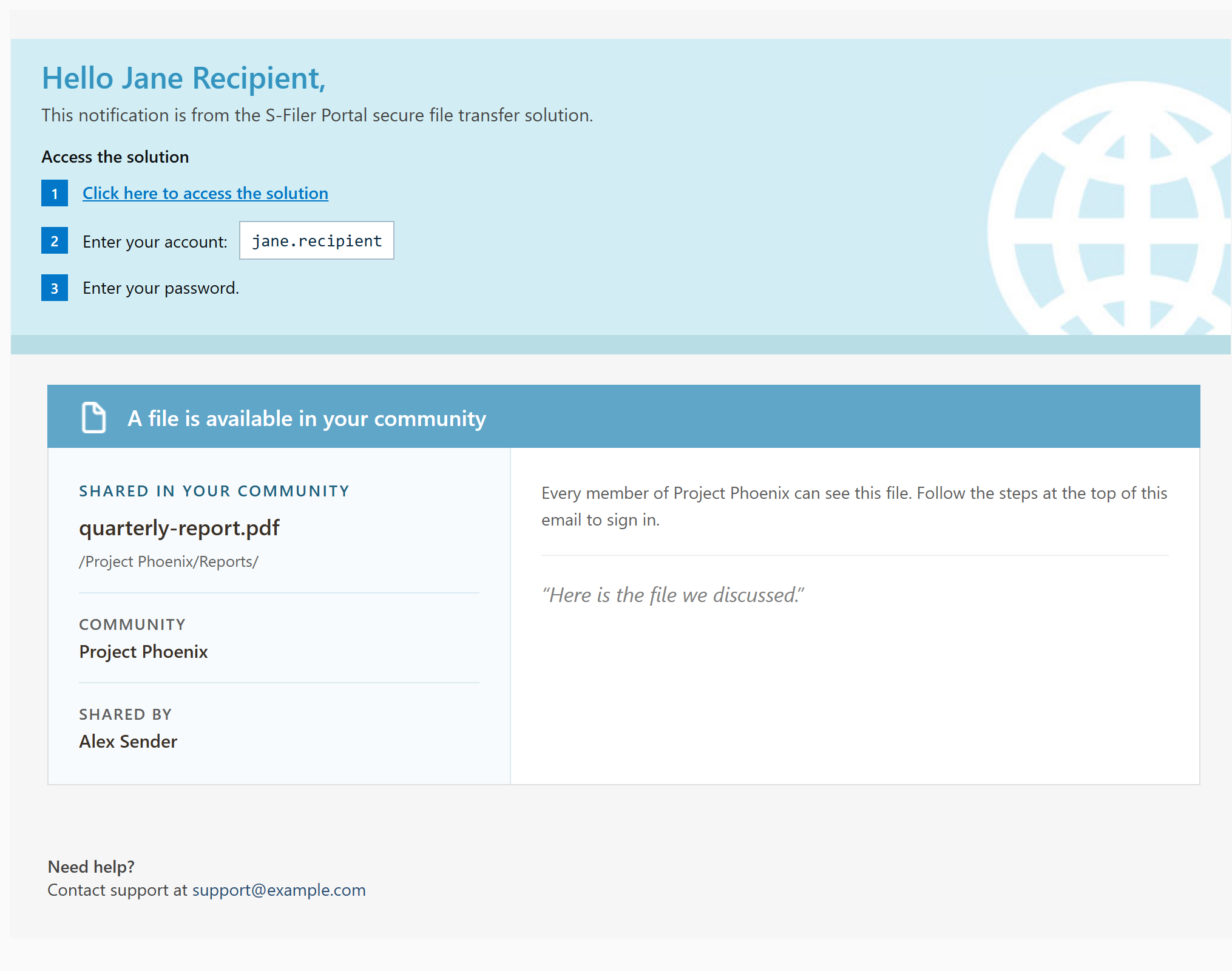
The recipient, file and community you see are the sample values of the scenario, not real data. To render other values, see Preview scenarios.
Step 6: Import the theme
Important
Before deploying the theme in production, a person reviews the final rendering. Open the .eml files of the preview/<language>/eml/ folders in Outlook, or in the email client of your recipients, for each notification that changed. If you have a test environment, import the theme there first: it is the only place where a real email goes out without reaching real recipients.
Import the theme with import-notification-themes. It replaces the theme in the database with the files of the working folder. To go back, unzip the file kept at Step 1 in another folder and import it the same way.
Watch the -p option, which this command uses twice with two meanings. Before the name of the command, it is the password of the database, which you leave out to be asked for it. After the name of the command, it is the working folder that holds the theme folder.
The -th option is the theme id, that is the name of the theme folder. --allow-update lets the import replace the existing theme, and without it the import stops on a theme that already exists:
./sfiler-config-cli.sh -l my-user -cf "conf/sfiler.conf" import-notification-themes -p "/tmp/theme" -th 123 --allow-update.\sfiler-config-cli.bat -l my-user -cf "conf\sfiler.conf" import-notification-themes -p "C:\temp\theme" -th 123 --allow-update