Customizing the theme of the application
This page describes how to create your own theme for the S-Filer Portal web interface and how to customize its colors and general appearance by modifying its CSS files.
To customize your application, you will need a text editor and be knowledgeable with HTML and CSS.
Creating your own theme
Every customization of the web interface — logos, CSS, login page message, license and acknowledgment pages — is made in a theme folder of your own, never in the default sfiler theme. The sfiler and commons themes are replaced by the versions delivered with each update of S-Filer Portal, so any change made to them is lost, while your own themes are carried over automatically (see Preserving your customizations during upgrades).
The themes are located on the gateway installation. For example, for an installation on the C drive on Windows, the themes are located here:
C:\Program Files\Okiok Data\sfiler-gateway\gateway\webapps\sfiler-gui-ajax\themes
This folder contains one sub-folder per theme. To create your own theme:
- Copy the sfiler folder in the same themes folder and give the copy a name of your own, for example mycompany.
- Open the Notification Themes menu and create a notification theme from Base theme 4.21 (or modify one you already created; the base theme itself is read-only). In the User interface theme field, enter the name of your theme folder, for example
mycompany, and save. Make this notification theme Active and Default to apply your theme to all users.
See Also
For more details on the User interface theme field, see Managing Notification Themes. To use different themes for different user populations, see How to configure multiple license or acknowledgment pages for different populations. To install a theme on an S-Filer Portal installation, see Deploying the user interface theme.
All the procedures of this section are then done in your theme folder.
Modifying the CSS files
Under the css folder of your theme you have access to the following files:
- login.css
- logout.css
- main.css
Login page
The most important CSS selector classes for the login page, in login.css, are:
- mainbody: enables you to change the white background to another color.
- Change background-color to a new color to do so.
- core-navbar: can be used to modify the top navigation bar.
- Change background-color to a new color to do so.
Main application section
Repeat the above actions in main.css in order to modify the post login pages.
- If you want to change the color of all links in the application:
- a: set the color to change all colors of the application.
- To change all title colors:
- h1, h2, h3, h4, h5: set the color to change all colors of the application.
- To change all buttons:
- .btn-primary: set the color to change all colors of the application.
Example
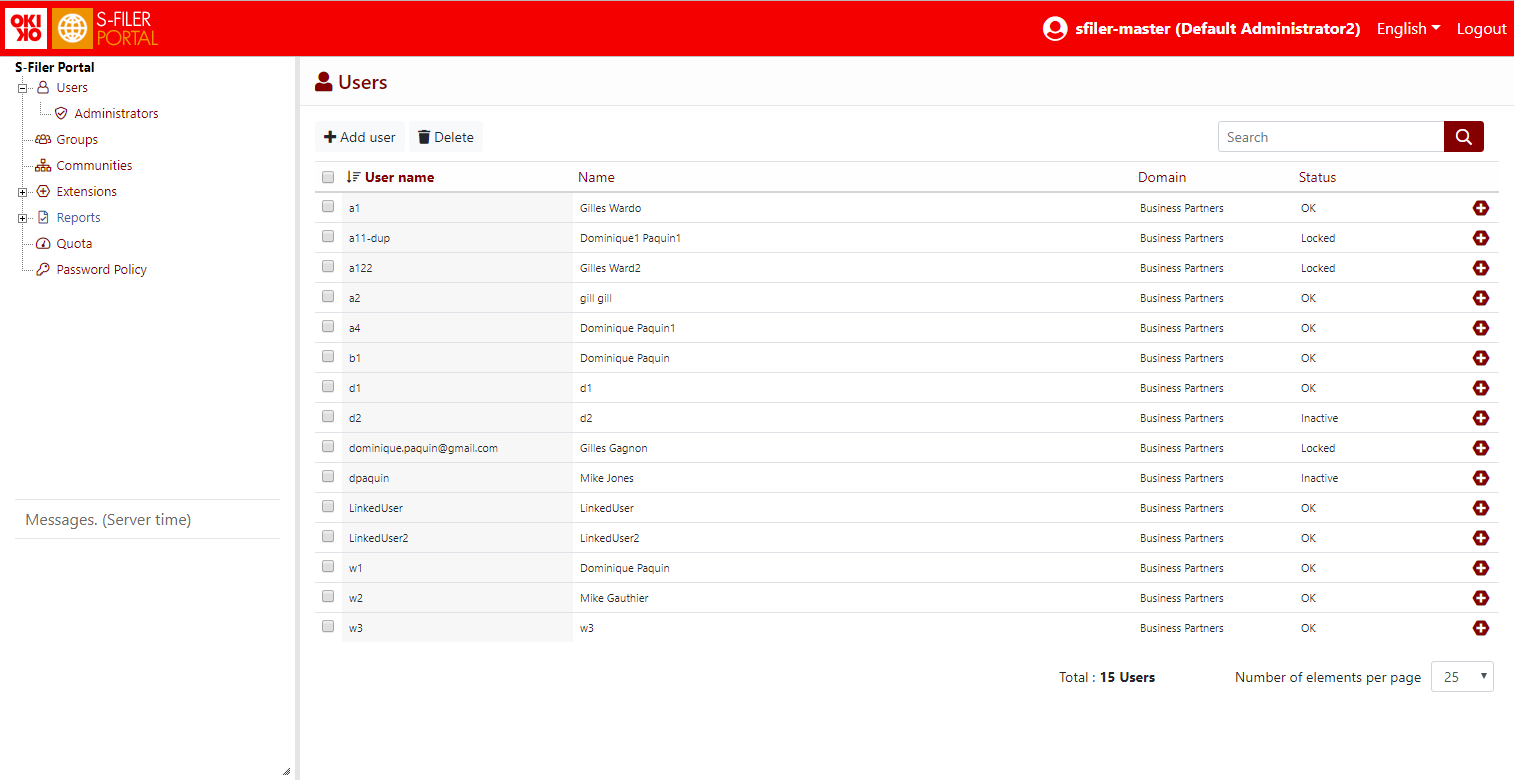
Here is an example of changing some rules to obtain a red theme.
Add these lines to main.css:
a{color:darkred;}
a:hover{color:#ff0000;}
h1,h2,h3,h4,h5{color:darkred}
.btn-primary{background-color:darkred;border:#530000;}
.btn-primary:hover{background-color:red}
The above will give you the following result: