Skip to content
Back to feature highlights

Feature highlight

S-Filer Portal 4.21 highlights: request files without creating an account

A signed contract, a tax return, a stack of supporting documents. When you need files from someone outside your organization, S-Filer Portal™ 4.21 brings them to you. You type an email address, your correspondent gets an invitation, and they upload. Nobody creates an account.

Ask in a few seconds

On the Request files screen, enter one or more addresses and tell your correspondents what you need. Then choose how each one proves who they are: a password, a code by SMS, a code by email, or nothing at all for a simple drop box.
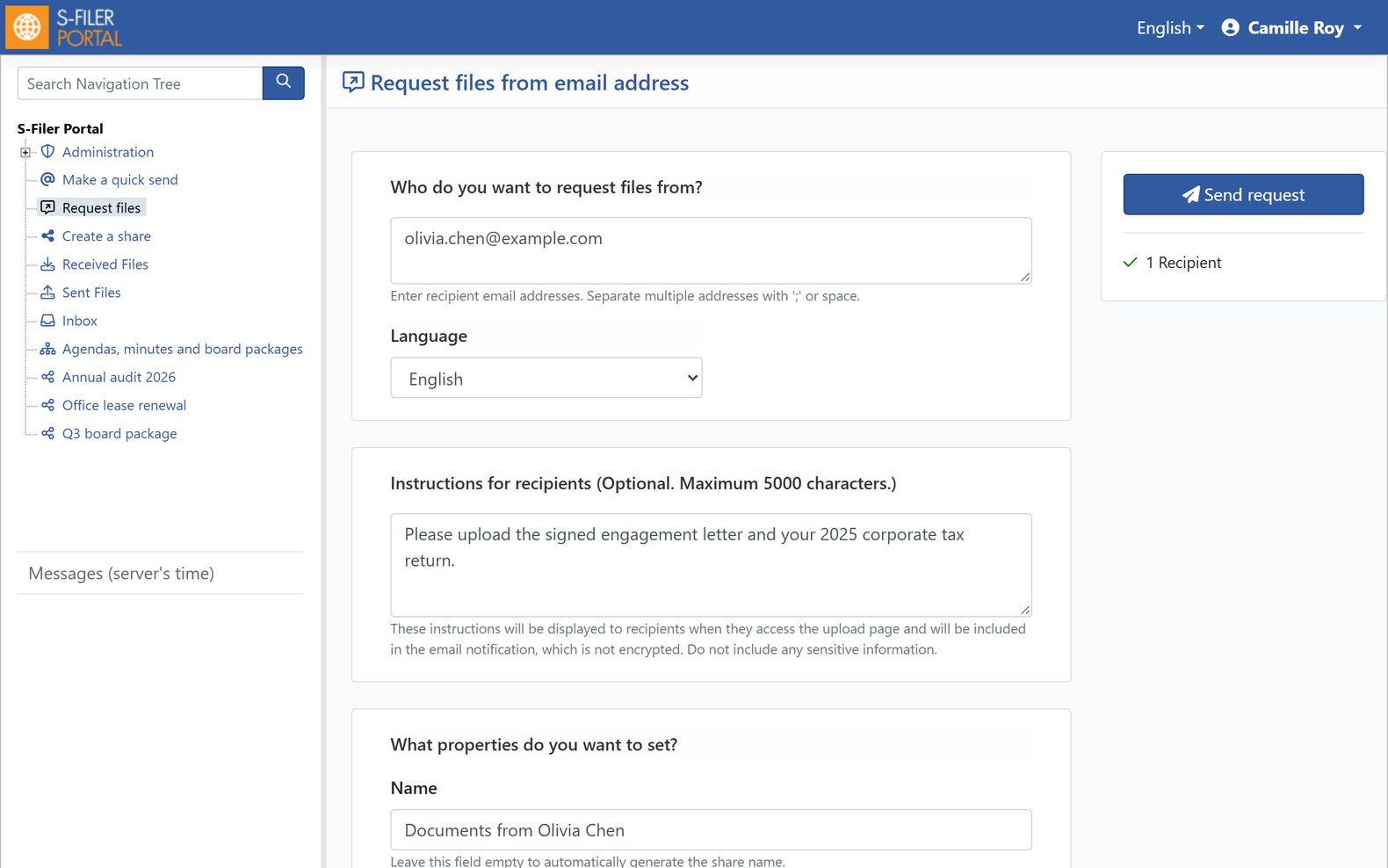
The Request files from email address screen: the correspondent’s email address, the notification language and instructions asking for a signed engagement letter and a tax return, with a Send request button on the right.

You also decide how long the request stays open. Keep it for the default period, until a set date, or until it sits idle for a number of days.
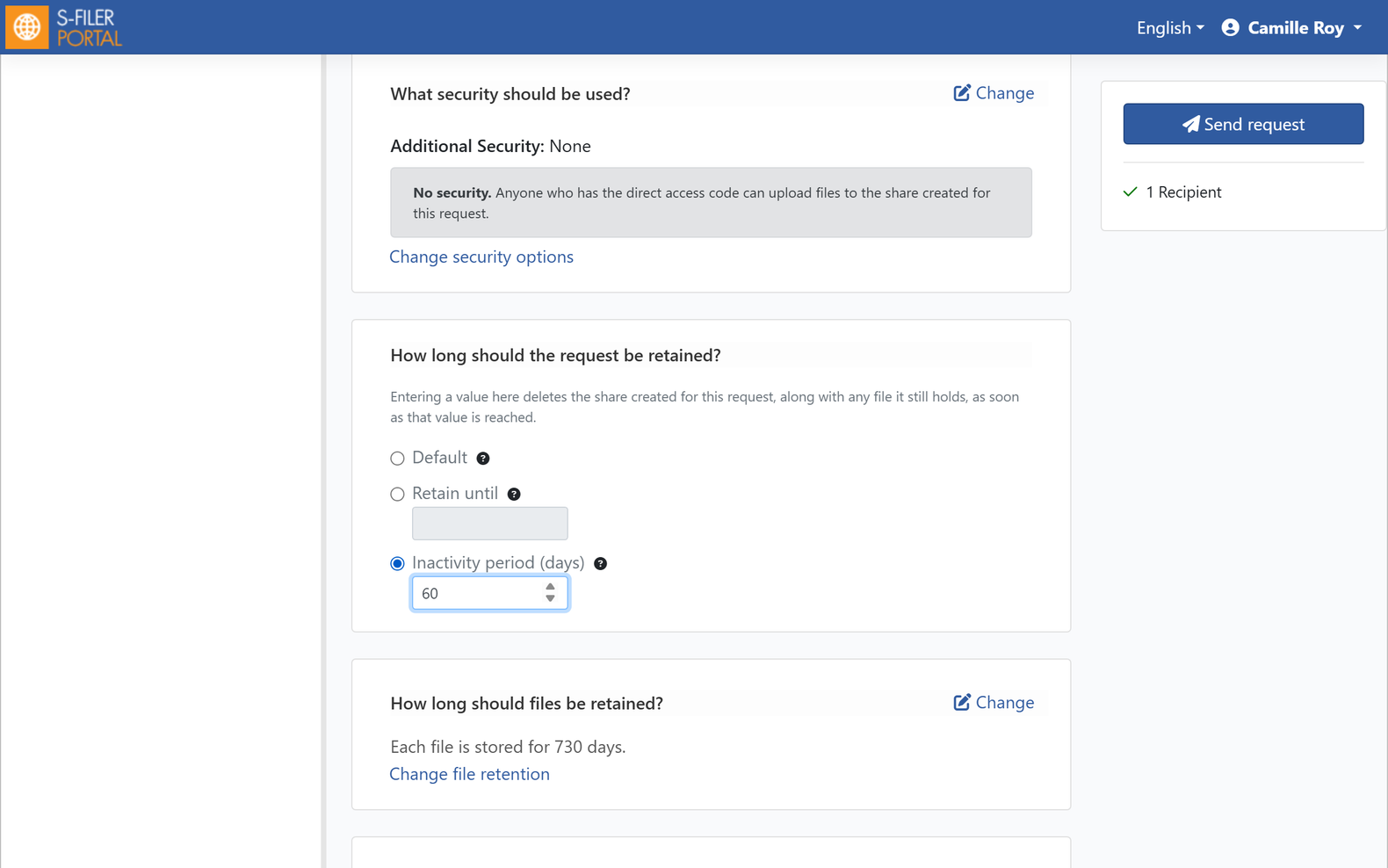
The retention section of a file request, asking how long the request should be retained: the default period, until a chosen date, or an inactivity period, here 60 days. Above it, the request uses no additional security.

A clear page for your correspondent

If you chose a code by email, S-Filer Portal sends it as soon as your correspondent signs in through the invitation. They type it in to get access.
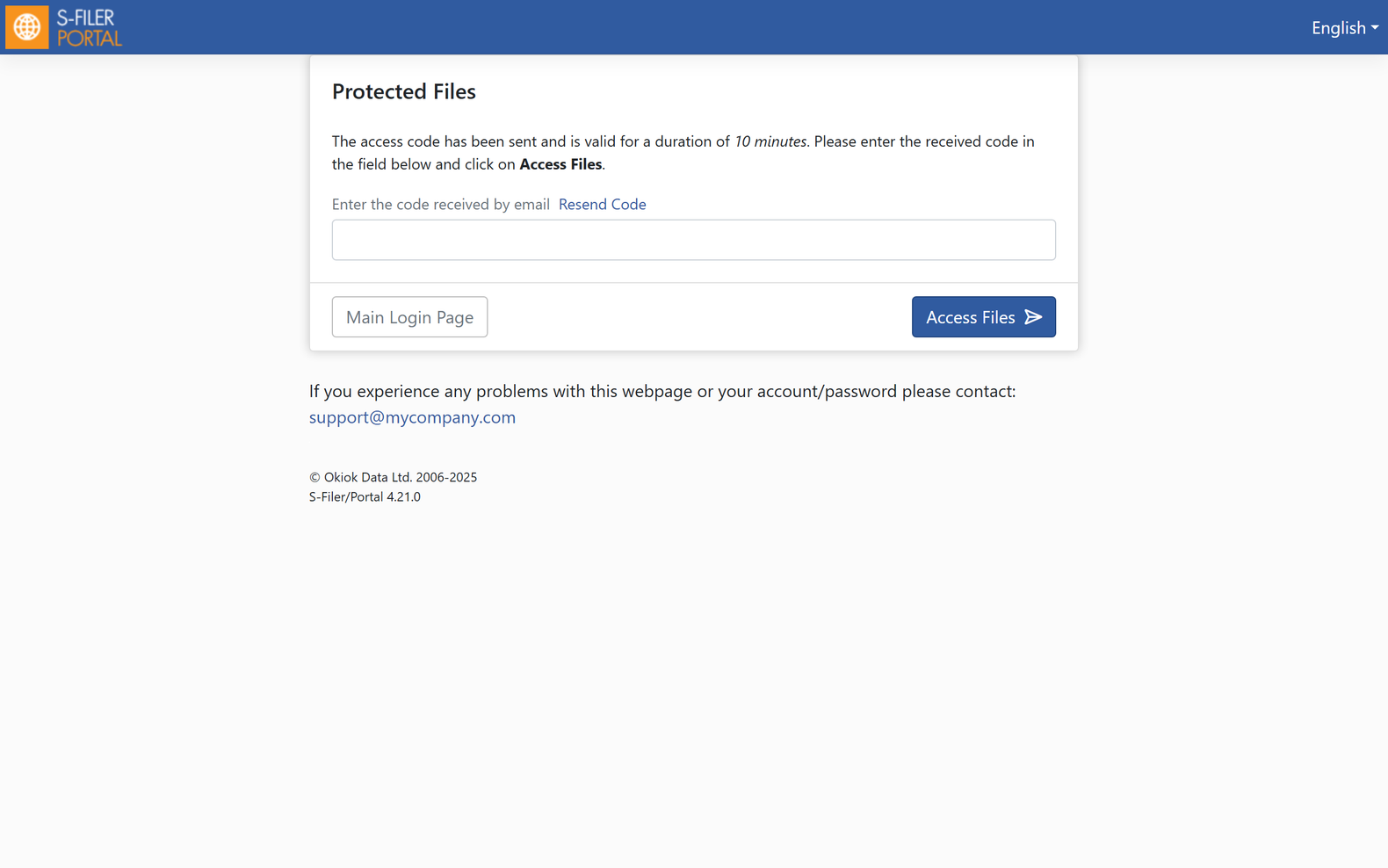
The Protected files page, which says an access code was sent and is valid for 10 minutes, with a field for the code received by email, a Resend Code link and an Access files button.

The upload page then opens with your instructions beside it. Your correspondent drops their files, and that is it.
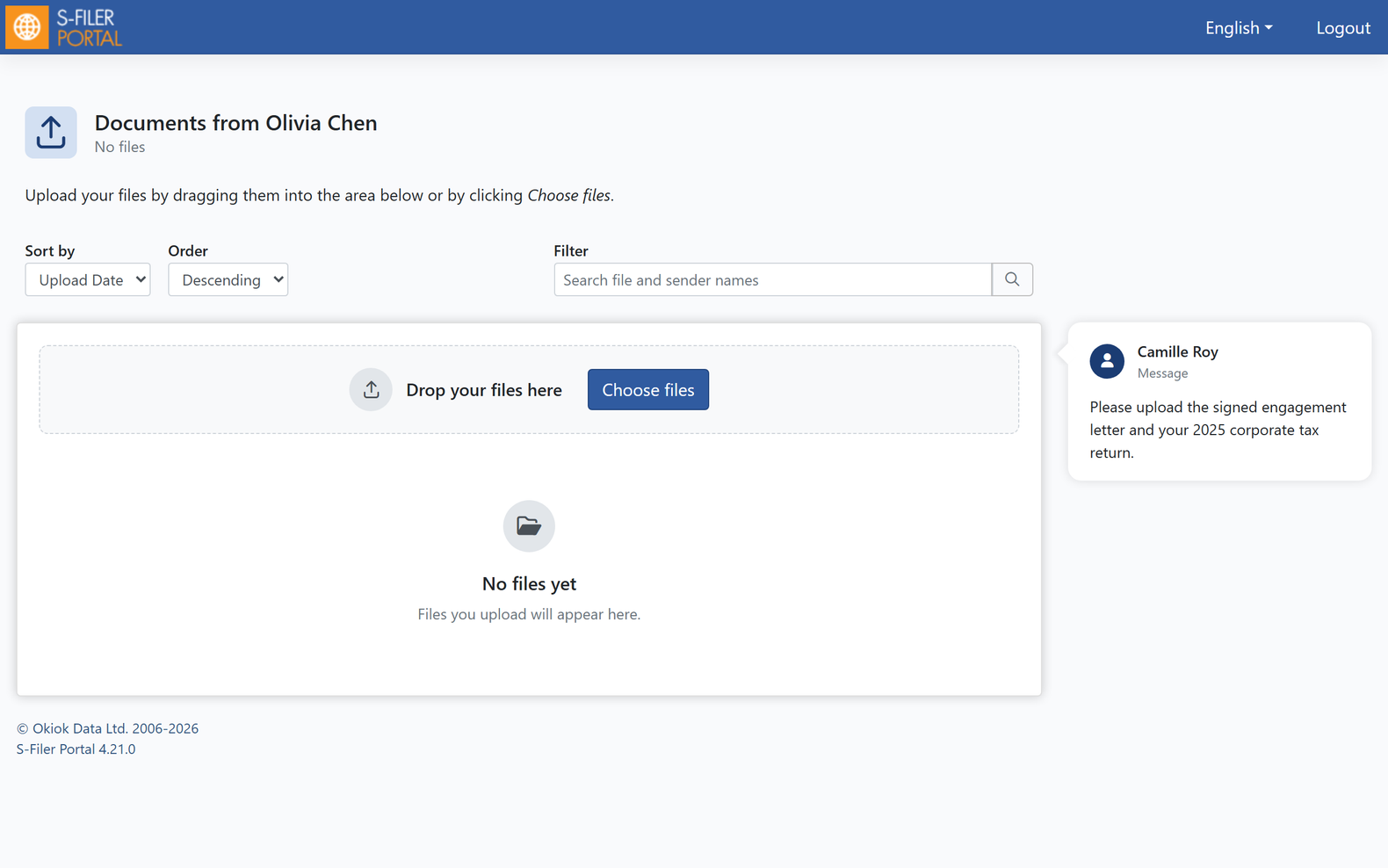
The upload page an external correspondent reaches from a file request: a drop zone with a Choose files button, an empty file list, and the requester’s instructions on the right.

Files arrive where you expect them

An email tells you the moment files land. The request has its own share space in your left menu, and the files are waiting there.
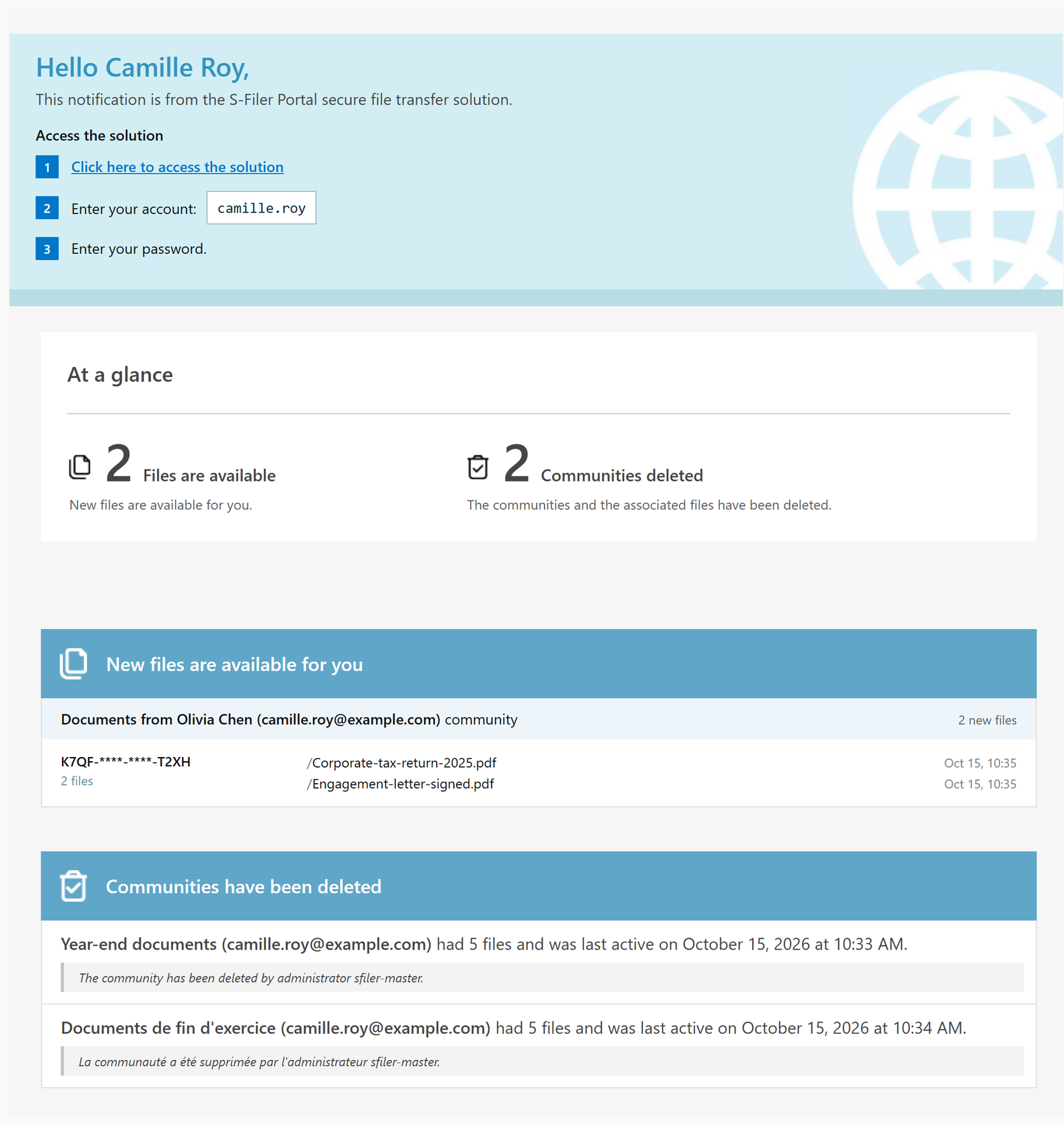
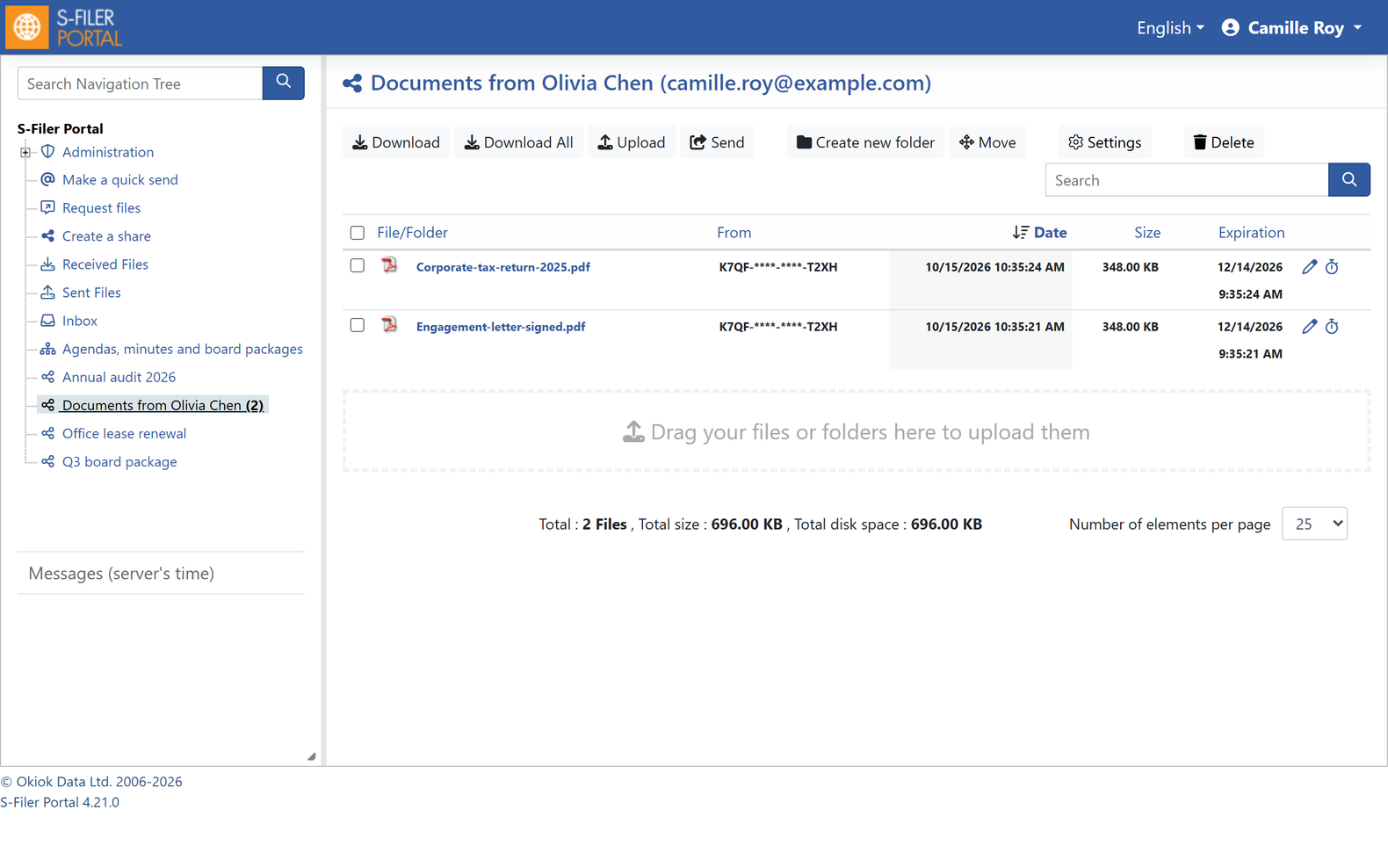
The email that tells the requester new files are available: the share space created for the request, with two new files uploaded through the correspondent’s direct access.

The share space created for a file request, holding the two files the correspondent uploaded, with their date, size and expiration.

You decide who can ask

Requesting files is a permission of its own, separate from quick send. Each group permission now has three states: allowed, denied or unspecified. Two new capabilities join the list: creating a share space and requesting files.
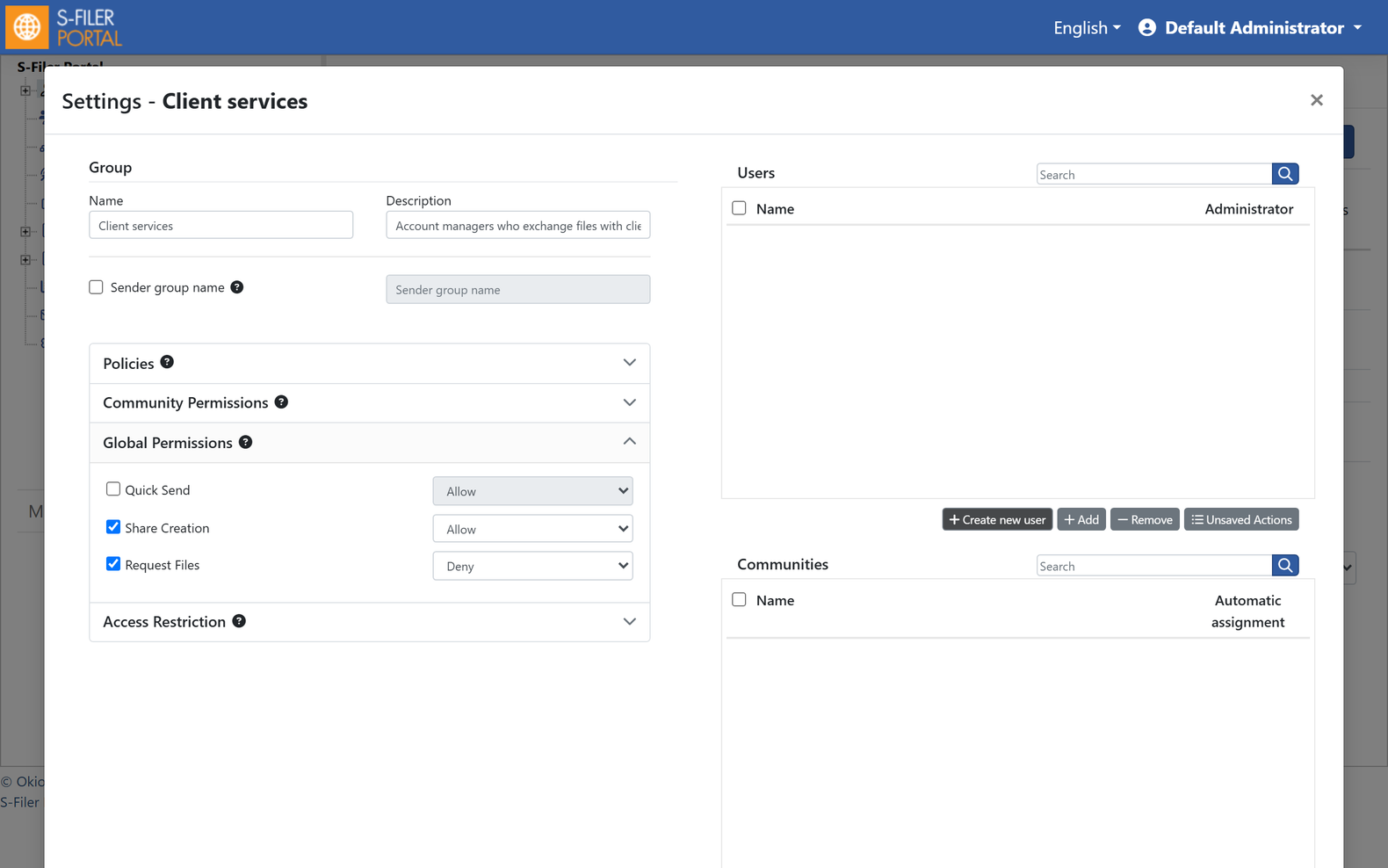
The settings window of a Client services group, open on its Global Permissions: quick send left unspecified with its box unticked, share creation ticked and allowed, request files ticked and denied.

The new Settings screen decides what happens when none of a user’s groups specifies a permission.
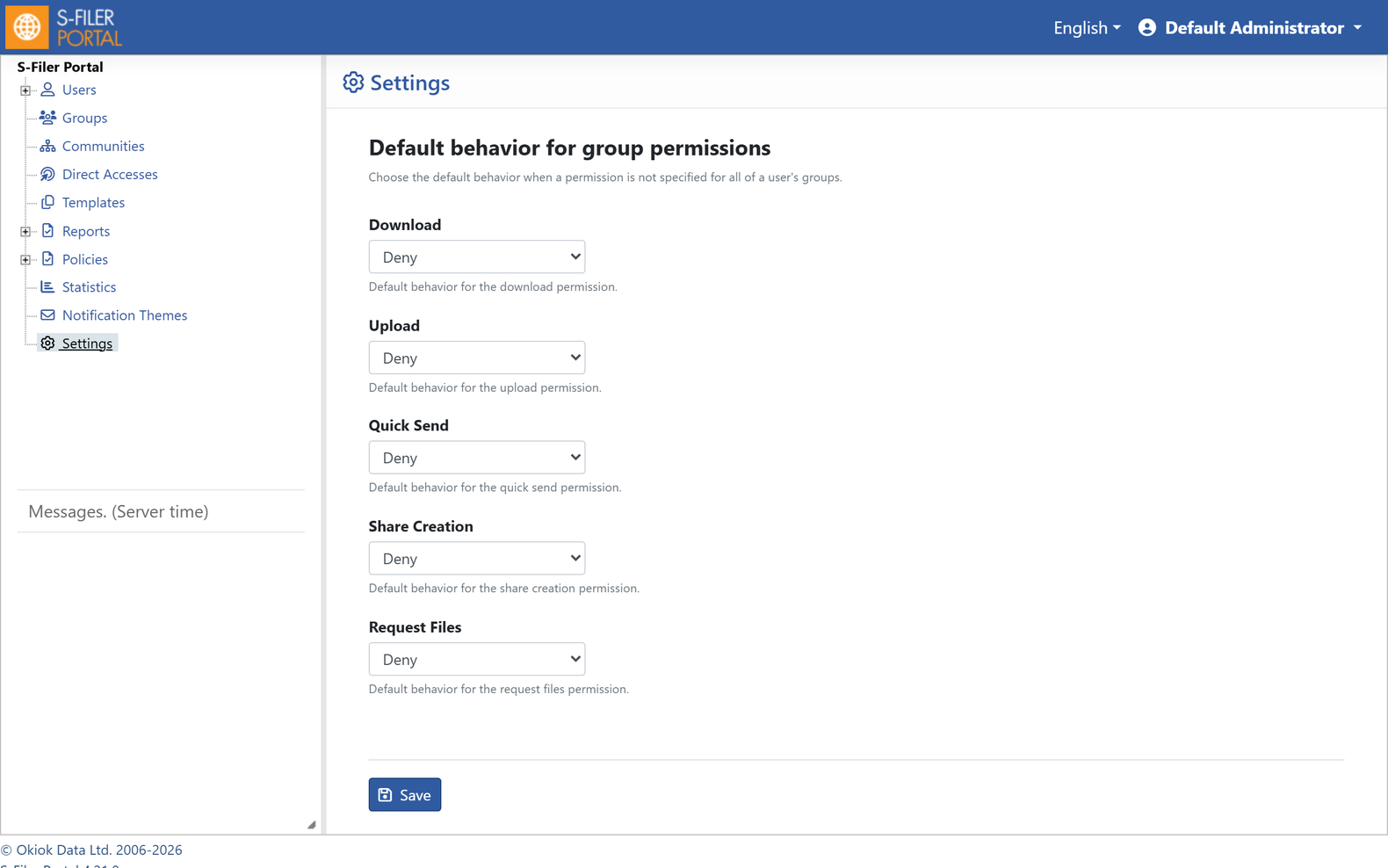
The Settings screen of the administration, which decides whether a permission none of a user’s groups specifies is allowed or denied, for download, upload, quick send, share creation and request files.

Turning it on

Requesting files comes with the 4.21 version flag. It is ready as soon as an administrator turns that flag on.

Send us a message

Only your email is required. Pick a subject, add a note, and send.

Incident in progress? Call the 24/7 line instead of waiting for a reply: +1 450 681-1681, extension 277