Sending files to someone outside your organization should take a minute. In S-Filer Portal™ 4.21, it does. The new quick send fits on a single screen, and it keeps working for you after you click Send files.
Everything on one page
Files, recipients, message, security and retention each open when you need them. A summary panel follows you down the page and ticks off what is ready. You always know what is left before sending.
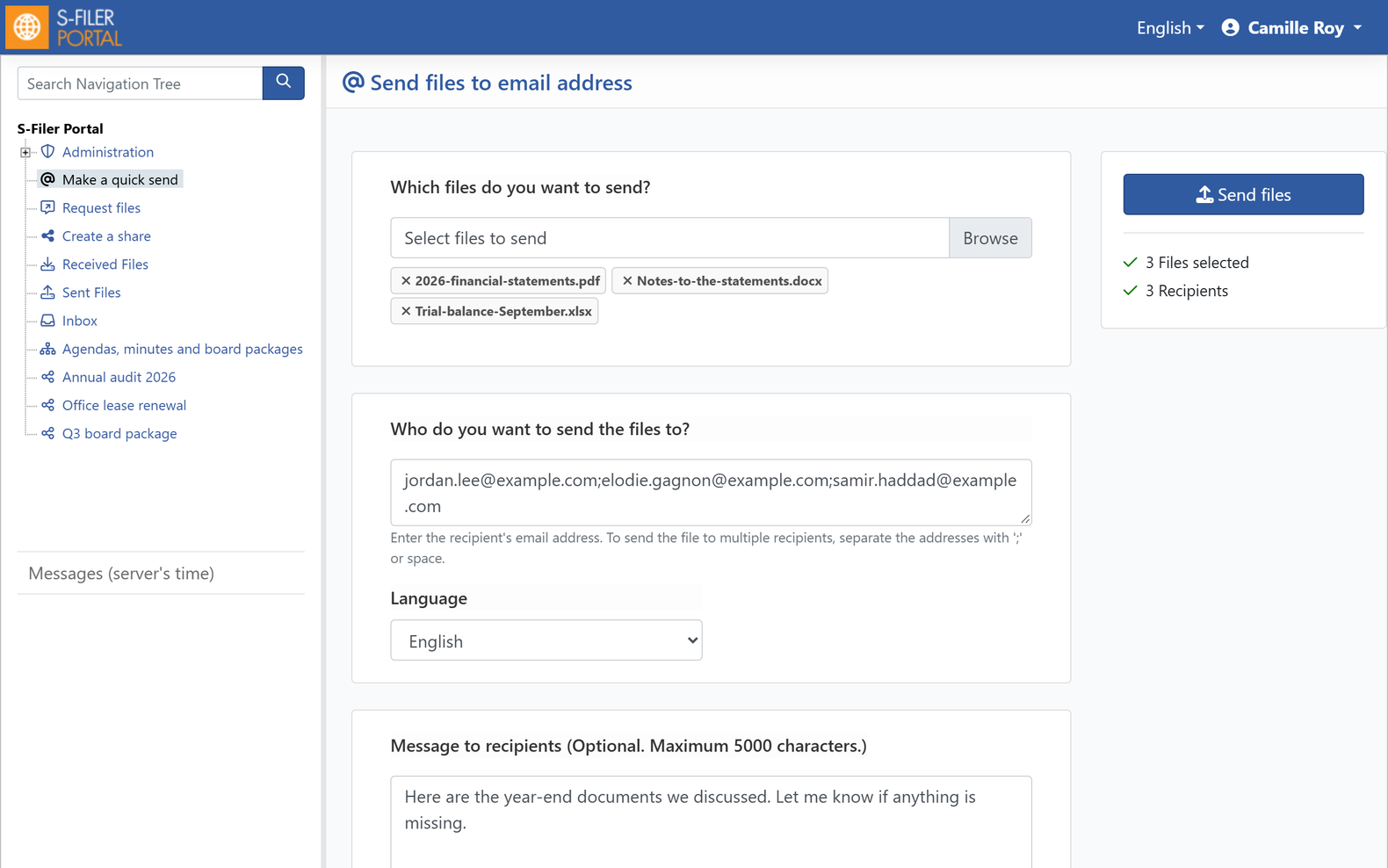
Your administrators can prepare templates with the right defaults. File requests use the same templates.
Each recipient, their own protection
Sending the same report to a partner and to an auditor? Protect each one differently. For every recipient, pick a password, a code by SMS, a code by email or no authentication, along with the language of their notification.
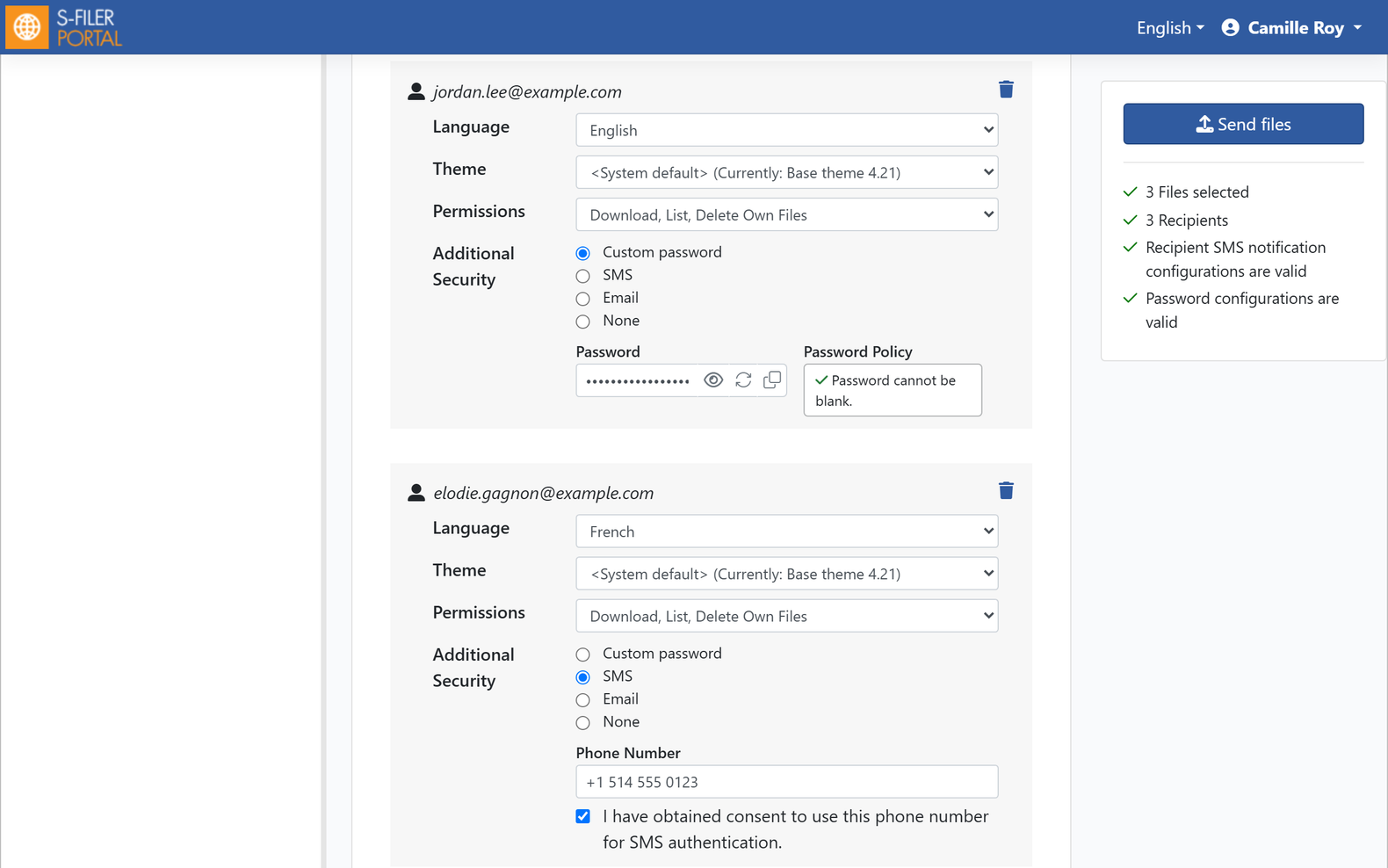
The code by email needs nothing from you. S-Filer Portal sends it to the recipient’s address as soon as they sign in from their email. They type it in to get access.
Your send, still in sight
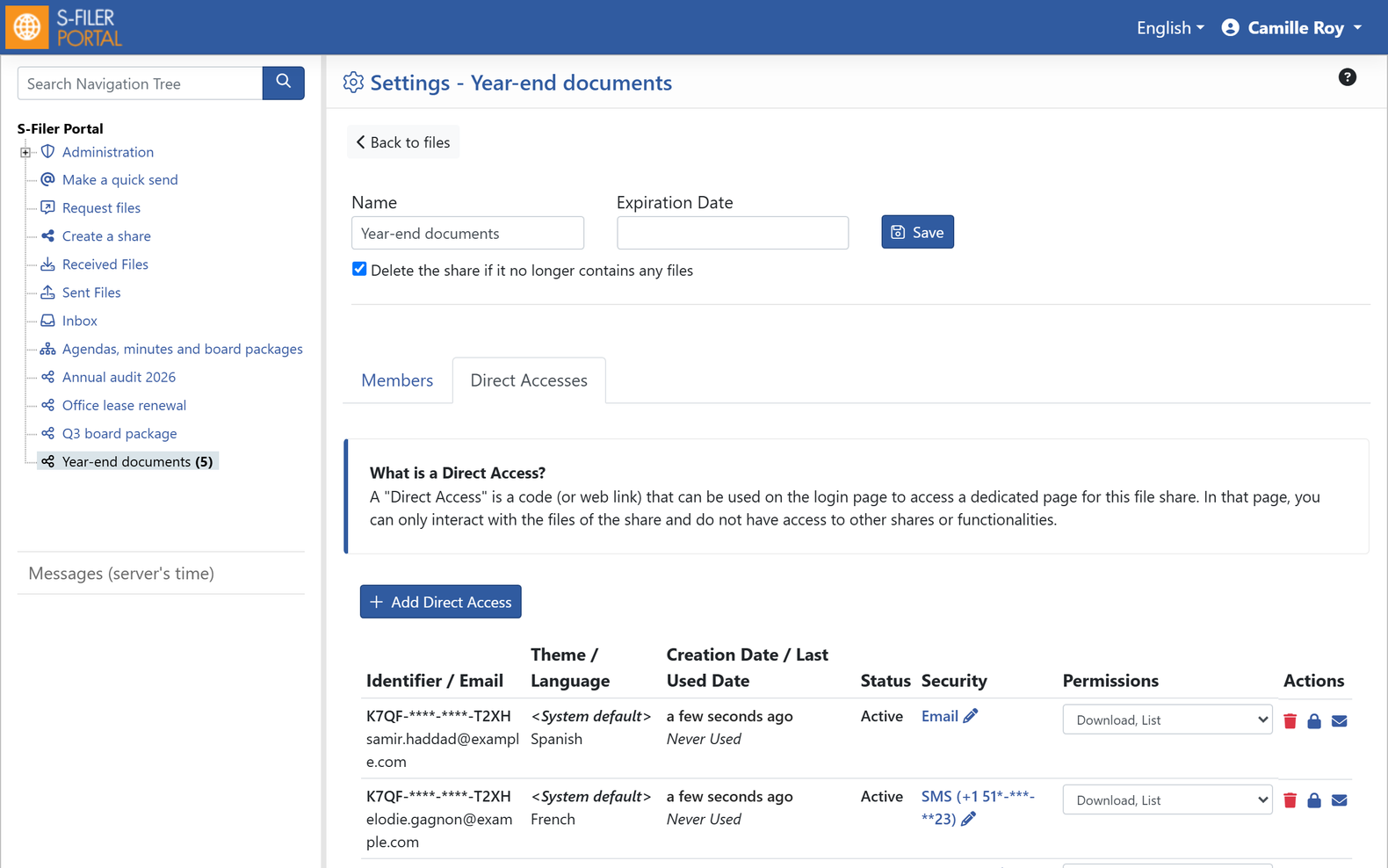
Each quick send now leaves a share space in your left menu. Rename it, change how long it is kept, and check each recipient’s access with its security, its permissions and when it was last used.
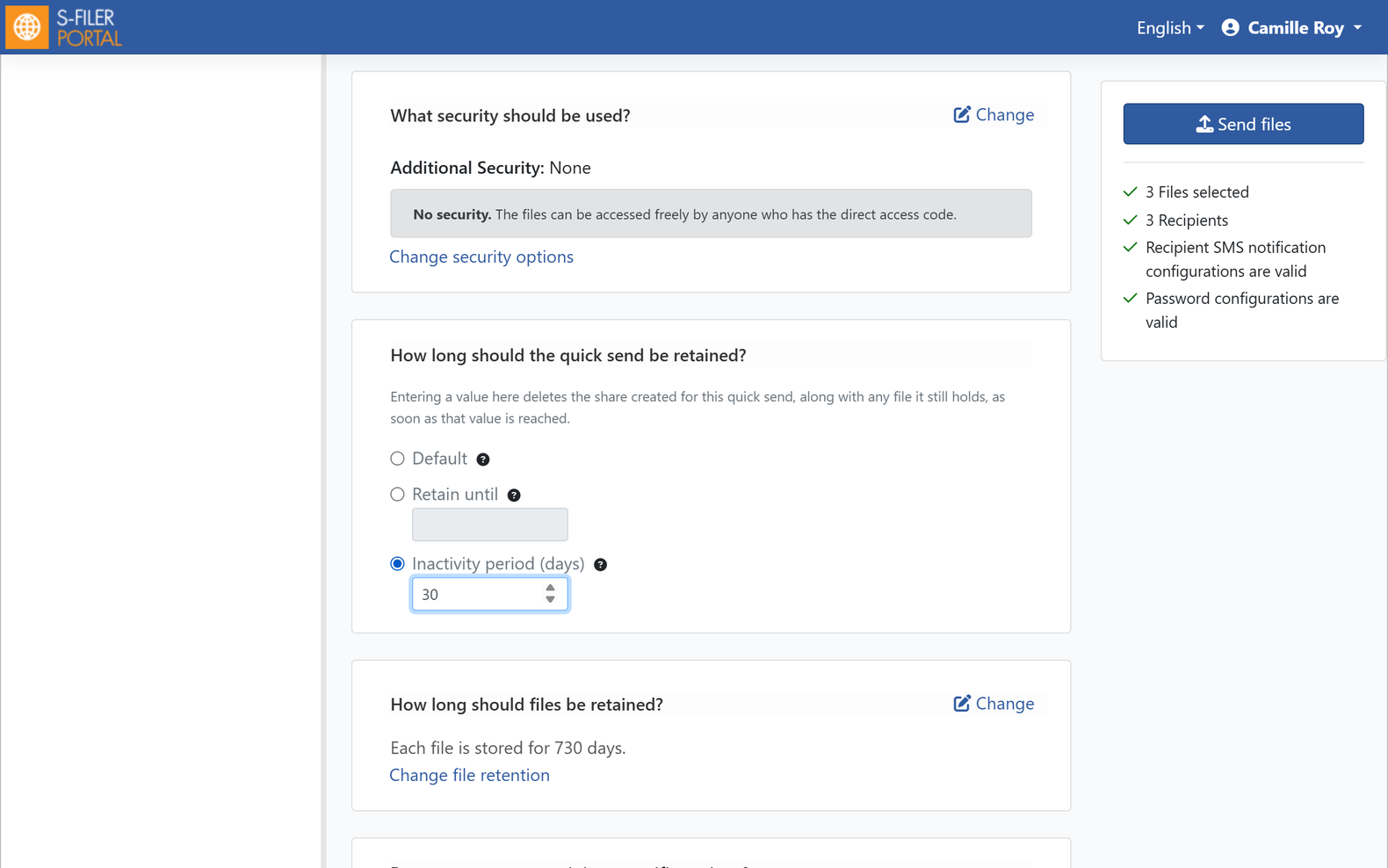
Keep it for the default period, until a date you choose, or until it sits unused for a number of days. Your administrators decide which date the screen suggests.
A warm welcome for your recipients
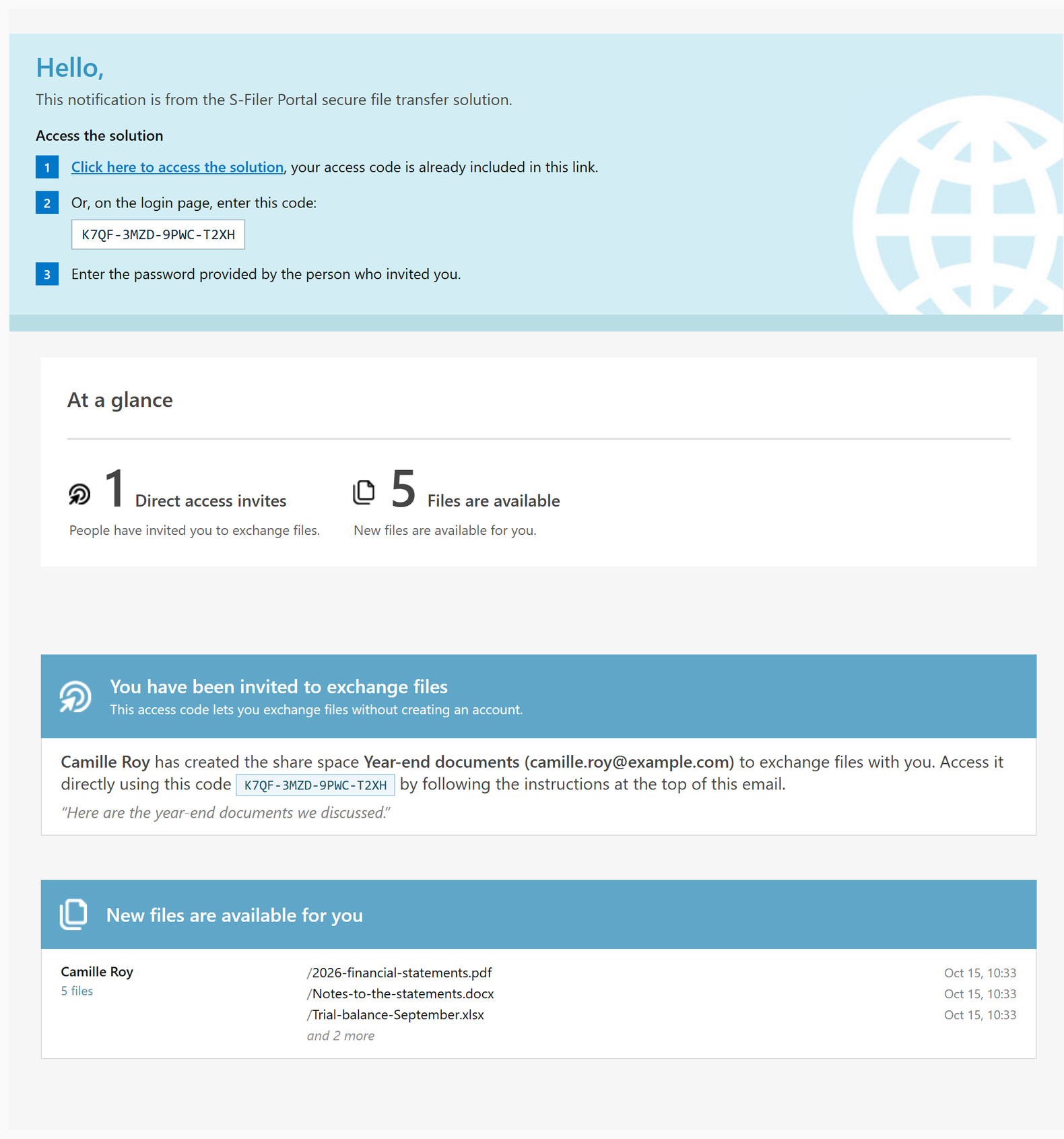
Recipients get one email for the whole send, with every file listed and a single access code. S-Filer Portal never stores that code in clear text.
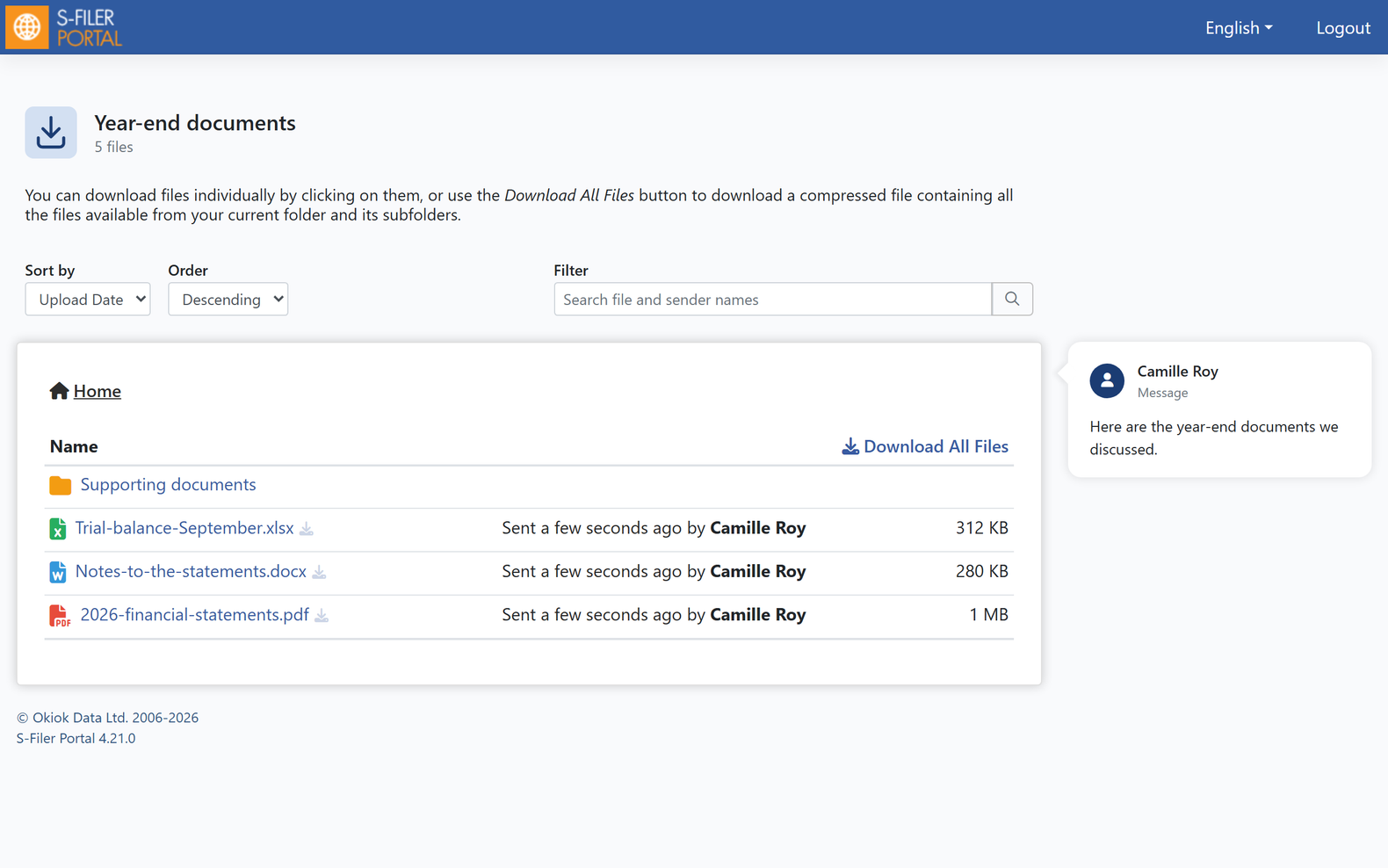
On the download page, they sort, search and browse folders. Download All Files gathers everything into one archive.
Turning it on
The new quick send comes with the 4.21 version flag. New installations send in direct access mode from day one. An existing instance keeps its download links until an administrator sets Quick send default download mode to Direct access in the administrative console.